
Override PBJ Code on Individual Timecard Punches
With this release, users can now override the PBJ code on an employee’s timecard for a selected set of punches, allowing hours to be allocated to the appropriate PBJ Job Code for reporting purposes.
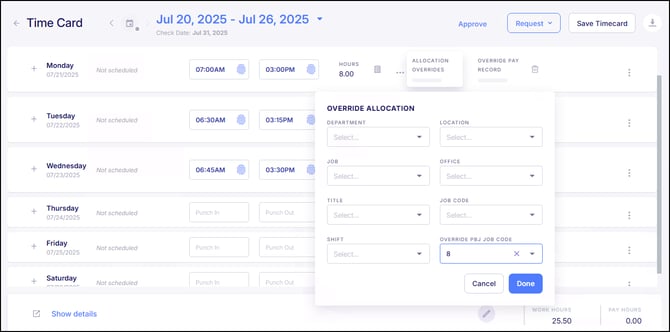
Now for any set of punches on the time card, there is an Override PBJ Code option that is available under the Allocation Overrides settings. This PBJ code entered will be allocated toward the hours for the recorded punches for PBJ reporting regardless of what is assigned on the employee's profile.
Advanced Scheduling Enhancements
Multiple Shifts Can Now Be Assigned to a Budget
In the January 5th, 2026 release, new scheduling configurations were introduced for Shifts and Budgets. Shifts are now simply defined timeframes in which work is scheduled, and Budgets are where Shifts are linked in order to establish budget criteria for it.
In this release, multiple Shifts can now be linked to a Budget to accommodate scenarios where staffing is shared across shifts for the same Schedule Role. When multiple Shifts are linked to a single Budget, the budgeted amount is filled collectively across all linked Shifts rather than applied separately to each Shift. This allows staffing to flex between Shifts as needed, which is especially useful for roles such as custodial or housekeeping staff where coverage might fluctuate.
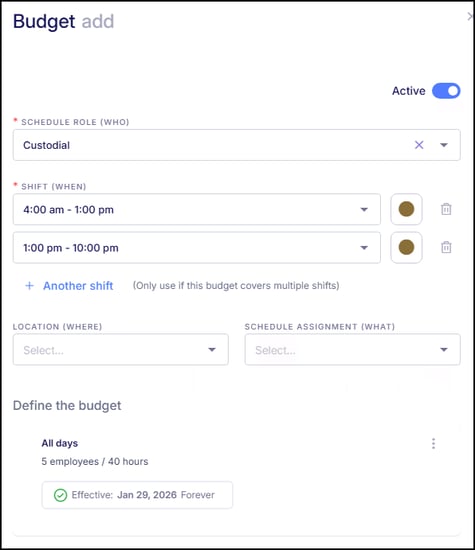
In this example, a single budget of 5 employees is shared across two linked Shifts. Because these Shifts are linked to the same Budget, they are treated collectively rather than independently.
When Shifts are linked to a Budget, each Shift will display a link icon to indicate that it is part of a shared budget. For clarity, it may be helpful to color-code linked Shifts the same to indicate which shifts are linked together toward the same budget.
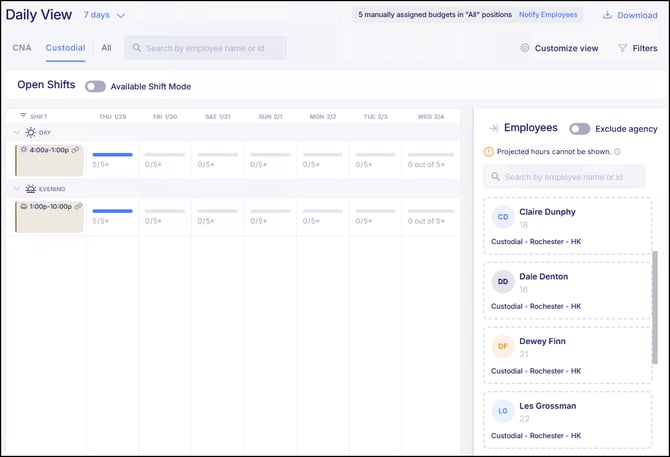
The daily budget display will also include an asterisk to indicate that the budget is being distributed across multiple Shifts rather than applied to a single Shift.
When building the schedule, the scheduler fills the shared budget across all linked Shifts. The total number of assigned employees across those Shifts will stay within the budgeted amount, but how that staffing is distributed can vary. For example, three employees may be assigned to one Shift and two to the other, and that distribution can change day to day based on staffing needs.
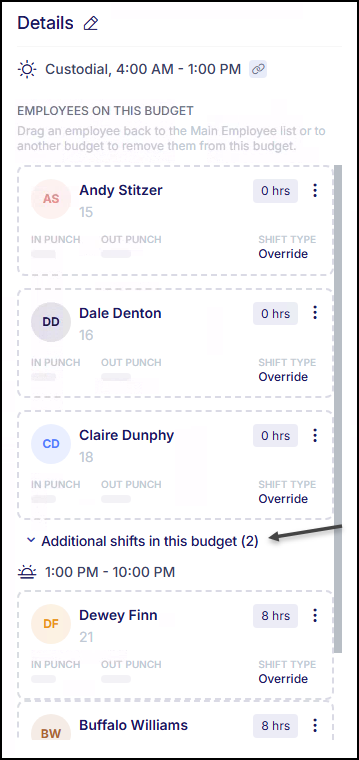
Within the Daily View, selecting a Shift will display the employees assigned to that Shift. The Shift details will also show employees assigned to other linked Shifts under the Additional Shifts in the Budget section, providing visibility into how the shared budget is being filled across all related Shifts.
Additional Job Info Fields Now Display on Budgets Table
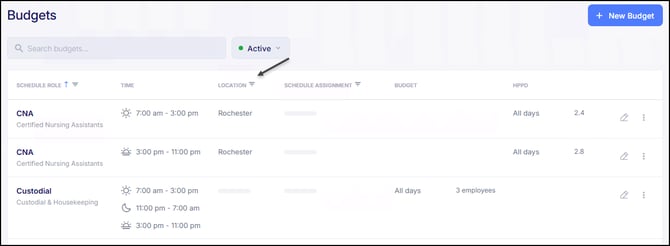
When additional Job Info fields (such as Location or Department) are enabled under the Shift Location Field in the Scheduling Settings Card, they will now appear as columns on the Budgets Table. This provides a quick, at-a-glance view of which budgets have been configured with specific Job Info filters, making it easier to review and manage existing budget configurations.
Sorting Updates in both Employee View and Daily View of the Schedule
Sorting in the Employee column has been updated in both the Employee View and Daily View of the Schedule to sort alphabetically by employee name. Previously, records were sorted by Employee ID. Additionally, a sorting issue in the Daily View where shifts with floor units could appear out of order has been corrected. Both updates help provide a cleaner and more consistent view of schedules.
Report Enhancements
Static Columns in Live Reports
All Live Reports now allow users to add Static Columns to a report. Static Columns are used to include a column that contains the same value for every row, or a blank value for every row. A Static Column does not pull data from employee or system records. Instead, the value is manually defined by the user and applied toward each row listed on the report.
The purpose of this enhancement is to support reports that are used for integrations, vendor files, or downstream systems that require specific columns to be present in a defined format. These added columns will appear in the report preview and export appropriately to both CSV and Excel, reducing the need for manual file edits after export.
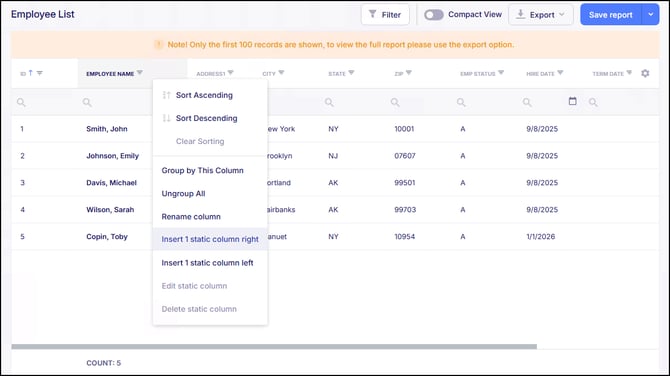
To add a Static Column to a Live Report, right-click on a column header next where you want the new column to appear. From there, choose to insert a Static Column to the left or right of the selected column.
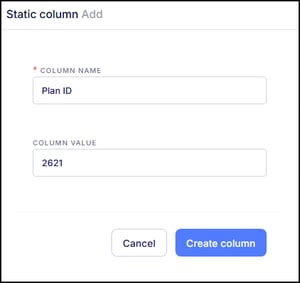
A window will open prompting for entry of a Column Name and, if applicable, a Column Value. If all rows should have the same value, enter it here, or leave it blank if the column should remain empty for every row.
Rename Columns in Live Reports
All Live Reports also now allow users to Rename Columns on the report. Columns that have been renamed will reflect accordingly when the Live report is exported. The ability to rename columns is helpful for reports that are used for integrations, vendor files, or downstream systems that require specific columns to be named in a specific format.
To rename a column on a Live Report, right-click on a column header that needs to be renamed and select "Rename column".
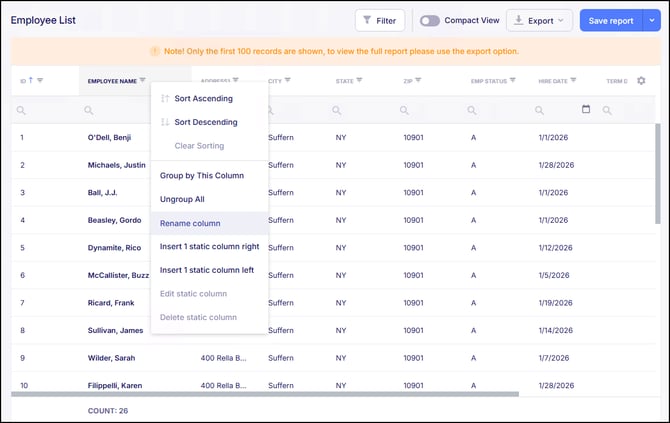
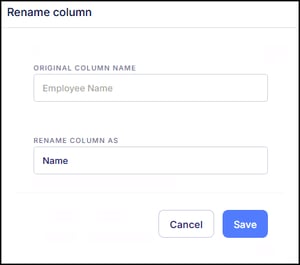
From there, a window will open listing the original column name, with the ability to enter what the new name should be within the "Rename Column As" field.
Updated Access to Scheduling Standard Reports
Previously, users with company-level roles limited to direct reports or specific employees were unable to view various Standard Reports available for Scheduling. Because these reports included all employees by default, the system was applying the user’s security filters for who they can and cannot see within the site and prevented these reports from being available.
We have now made it so that these users can access all scheduling-related Standard Reports. Since scheduling reports do not contain sensitive or personal information, users will be able to see all employees, however filtering can be applied within the Options tab of the report settings in order to filter the report to show only the employees they need to see.
Daily Time Card Report Improvements
The Daily Time Card Standard Report has been updated to improve readability and consistency. Cost Centers within the report now display both the code and description, providing clearer context when reviewing time card data. In addition, sorting has been refined so records are grouped by Cost Center and then by employee, ensuring employees appear in a consistent order regardless of whether punches are present. These updates make the report easier to review and align its behavior with other standard reports.
Filter Groups Enhancements
Preview Employees when Creating a Filter Group
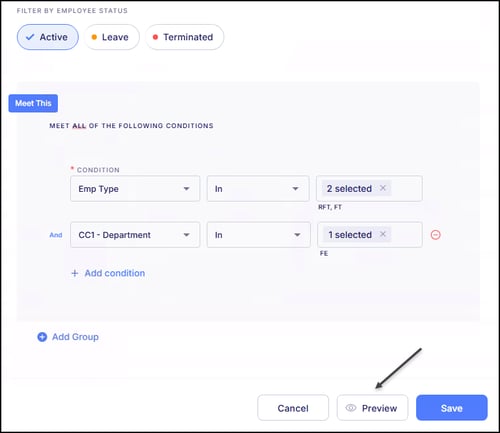
When configuring a Filter Group, users can now preview the employees that will be included as the conditions are being built. This makes it easier to validate filter logic in real time before saving the group.
Quick Add Filter Groups
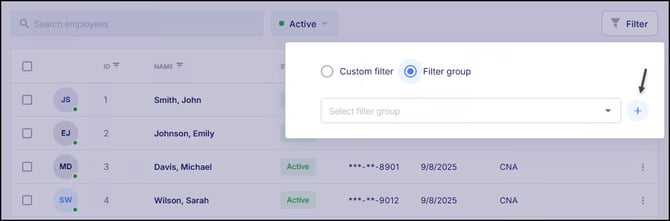
In areas where Filter Groups can be applied (such as Accrual Policies or filtering the People list), a new option is now available to add a Filter Group directly from the screen. There will be a "blue plus" sign available in these areas to be able to quickly add a new Filter Group. This allows Filter Groups to be created without navigating away from the screen, making setup faster and more efficient.
Select Multiple Employee ID's in Filter Groups
Requests Dashboard Now Supports Employee ID Search
The search function within the Requests Dashboard has been enhanced to support searching by Employee ID. Previously, searches were limited to employee name only. With this update, Employee ID can now be used as an additional search option, making it easier to quickly locate specific employees when reviewing and approving requests.
Automated Deactivation of Licenses and Certifications
Now when an employee’s License/Certificate is updated, any existing record tied to the same license or certification type will now be automatically deactivated. This ensures only the most current license or certification remains active, helping reduce manual cleanup and maintain accurate employee records.
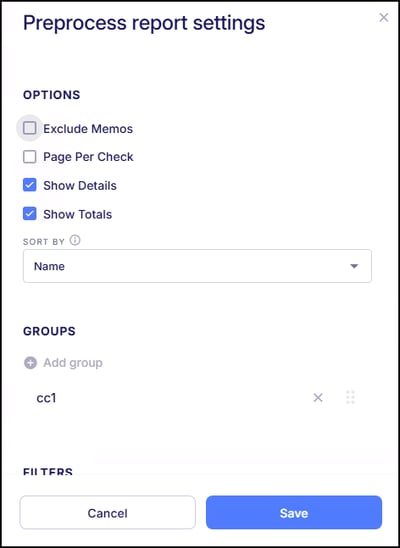
New Exclude Memo Earnings option from Pre-Process PDF
A new option has been added to "Exclude Memo" earnings when exporting a pre-processing payroll report as a PDF. This gives users more control over what appears on verification reports before processing the batch.
SSNs Masked on Employee Copies of Form 1095-C
To improve data security, Social Security Numbers are now masked on all employee-furnished copies of Form 1095-C. Employee copies will display only the last four digits of the SSN, with the remaining digits masked. This applies to both employees and any covered dependents listed on the form and helps reduce the risk of sensitive information being exposed when forms are accessed or downloaded.
Pay Entry Time Defaults to Midnight
The default time applied to Clock In and Clock Out entries in Pay Entry has been standardized. Previously, the default time varied depending on whether the date was selected from the calendar or manually entered. With this update, the time will consistently default to 12:00 AM, regardless of how the date is entered. This ensures more predictable and consistent behavior when entering pay data.
Bug Fixes
- Role Permissions Display Issue - There were reported instances when creating a new Role within Empeon Workforce where role permissions were not fully displayed on smaller laptop screens or when the screen was zoomed in. In these cases, users were unable to complete the role creation process. This issue has now been resolved with the addition of a scroll option, allowing role permissions to display correctly across different screen sizes and resolutions.
- Archived Documents Appearing in Onboarding Invitations - There have been some reported cases where documents included within an onboarding template that were later archived were still being presented to new hires for completion. While these documents were no longer visible within the onboarding template, employees could still see and complete them during onboarding. This issue has now been resolved. Archived documents will no longer be sent with onboarding invitations or appear during the onboarding process.
- ESS Logout Warning Display Order - There were reported instances where the ESS logout warning appeared behind an active request window. In these cases, users could unintentionally submit a request more than once before being logged out. This issue has now been resolved. The logout warning will now display on top of other open windows, ensuring it is clearly visible and preventing duplicate submissions.
- Employee Search Field Not Clearing - There were reported instances where the Employee Search field remained populated after navigating to an employee record, rather than clearing as expected. This issue has now been resolved.
- Tax Calculation Issue with Override Withholdings - There were some reported instances where tax calculations could produce incorrect results when tax override values were applied. In certain scenarios, this could lead to inaccurate withholding amounts, skipped required taxes, or incorrect net pay and W-2 preview values. This issue has now been resolved. Tax calculations now process correctly when override fields are present, ensuring accurate paycheck and year-end reporting.
- Year-End Dashboard Overtime Configuration Requirement - Empeon recently introduced the Overtime Tax Deduction card to support overtime tax deductions for 2025 as part of the One Big Beautiful Bill Act. When configuring this card for 2025 year-end filing, it was inadvertently applied to prior calendar years as well. As a result, users were unable to access or print W-2s for 2024 and earlier unless the overtime tax deduction configuration was completed. This issue has now been resolved, and the configuration of this card only applies to 2025.