
What are Scheduling Settings?
Empeon’s Advanced Scheduling feature uses the Scheduling Settings card as the foundation for how Budgets are applied and enforced within the schedule. Within this card there are the following sections, each with settings and configuration that impacts Budgets:
- General Settings
- Rate and Bonus limits
- Work Categories
- Budget and Census
To view and maintain the Scheduling Settings, navigate to the Scheduling section of the Company tab and select the Settings Card.
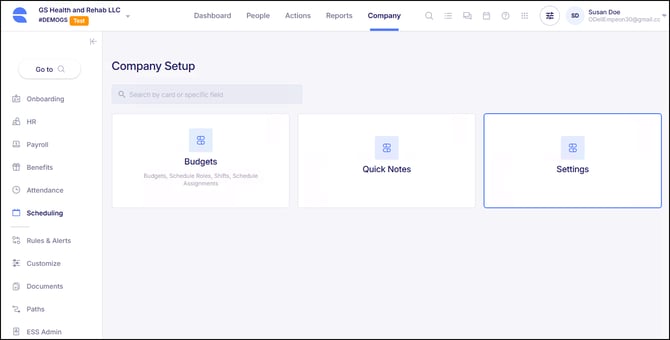
The Settings Card is divided into four sections: General Settings, Rate and bonus limits, Work categories and Budget and census.
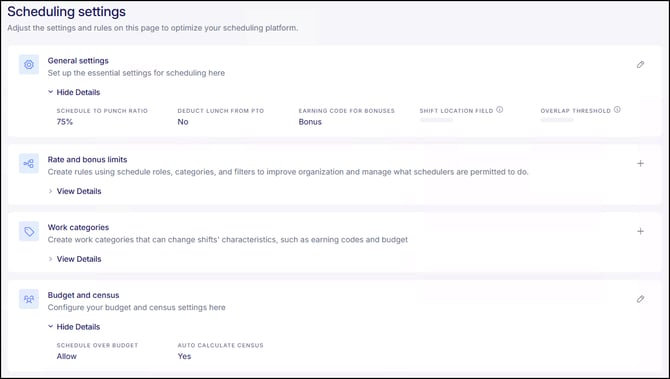
General settings
The settings within this section further define how assigned Budgets are applied to the schedule. Click the "Edit" pencil to view and maintain the following settings:
- Schedule to Punch Fill Ratio % - For a Shift linked to a Budget, this is the minimum percentage that needs to be worked in order for the Shift to be considered completed. If an employee works less than the percentage established in this field, the Shift will be marked as absent, though the employee will still paid for the hours that they worked. For example, at 75%, an 8-hour shift requires at least 6 hours worked to be considered completed.
- Ignore Department - If the Budget includes additional filtering for Department, toggling this on will exclude the filter from being applied when assigning the Budget as part of a Shift Schedule Pattern. Instead, any Department linked to a Budget will just display as informational purposes, not as filtering criteria for employee eligibility.
- Ignore Location - If the Budget includes additional filtering for Location, toggling this on will exclude the filter from being applied when assigning the Budget as part of a Shift Schedule Pattern. Instead, any Location linked to a Budget will just display as informational purposes, not as filtering criteria for employee eligibility.
- Ignore Floor/Unit - If the Budget includes additional filtering for Floor/Unit, toggling this on will exclude the filter from being applied when assigning the Budget as part of a Shift Schedule Pattern. Instead, any Floor/Unit linked to a Budget will just display as informational purposes, not as filtering criteria for employee eligibility.
- Ignore Division - If the Budget includes additional filtering for Division, toggling this on will exclude the filter from being applied when assigning the Budget as part of a Shift Schedule Pattern. Instead, any Division linked to a Budget will just display as informational purposes, not as filtering criteria for employee eligibility.
- Deduct Lunch from the Time Off Requests - When a lunch duration is assigned to a Shift, enabling this toggle automatically deducts the lunch duration from any PTO requests for that shift. For example, an 8-hour shift with a 30-minute lunch is treated as a 7.5-hour shift, reducing the PTO request to 7.5 hours instead of 8.
- Earning Code for Bonuses - For any assigned Shift, there is the ability to apply a Bonus amount for working the Shift. To ensure this bonus is reflected in payroll as a bonus, the Earning Code for Bonus must be linked in this field.
- Shift Location Field - By default, Budgets are associated to a Floor/Unit when determining where the work applies. This setting allows for additional Job Info fields, such as Location or Department, to be available for a Budget.
- Overlap Threshold - Defines the maximum number of minutes one shift can overlap with the next scheduled shift for the same employee. This setting helps prevent gaps in coverage between shifts and applies globally to all Budgets by default. An Overlap Threshold entered at the Budget level will override this company-level setting for that specific Budget.
Rate and bonus limits
This section allows companies to define the maximum rate and/or bonus amounts that can be applied toward a Shift.
Within Empeon's Advanced Scheduling feature, rates and bonuses can be applied toward assigned Shifts as a way to provide additional incentives when the Shift is worked. The settings within this section are essentially enforcing the maximum rate and/or bonus amount that can be applied when this action takes place within the scheduler.
When a scheduler attempts to enter a rate or bonus to an assigned Shift on the schedule, the system will:
- Notify what rate and/or bonus limit is
- Prevent entries that exceed the limit
- Block rate or bonus entry altogether if no limits have been established. If no limits exist, users with the required permissions will be guided to this configuration page in order to set them up.
To view rate and bonus limits that have been set up, click the "View Details" button within this section. For each limit that has been established, there is a three dot menu to edit or delete if necessary. To add a new limit, click the 'plus sign' in the top right of this card.

When creating a new limit, please note the following fields:
- Schedule Role - Select the Schedule Role that the rule will apply to. This links the rate and bonus limits to the specific Budget(s) that the Schedule Role is linked to.
- Shift Rate Limit - Enter the maximum hourly rate that can be applied to the Shift, if applicable.
- Shift Bonus Limit - Enter the maximum bonus amount that can be added to the Shift, if applicable.
For each condition, at least one rate limit or one bonus limit must be provided. Both can be used when a Shift requires limits for each.
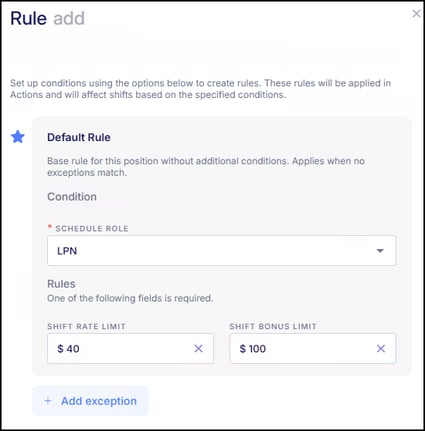
If there are exceptions to the condition set, such as when different rates or bonuses should apply when the Shift is worked in a specific Floor/Unit, Division, Department, Location, or Shift Category, the "+ Add exception" button can be used to set up conditions for these circumstances.
When setting up an exception, please note the following:
- Floor/Unit - If within the assigned Schedule Role, there are differing rate and/or bonus limits that should apply when the employee works in a particular Floor/Unit, assign them here.
- Division - If within the assigned Schedule Role, there are differing rate and/or bonus limits that should apply when the employee works in a particular Division, assign them here.
- Department - If within the assigned Schedule Role, there are differing rate and/or bonus limits that should apply when the employee works in a particular Department, assign them here.
- Location - If within the assigned Schedule Role, there are differing rate and/or bonus limits that should apply when the employee works in a particular Location, assign them here.
- Shift Category - If within the assigned Schedule Role, there are differing rate and/or bonus limits that should apply when the employee works in a particular Shift Category (Day, Eve, Night), assign them here.
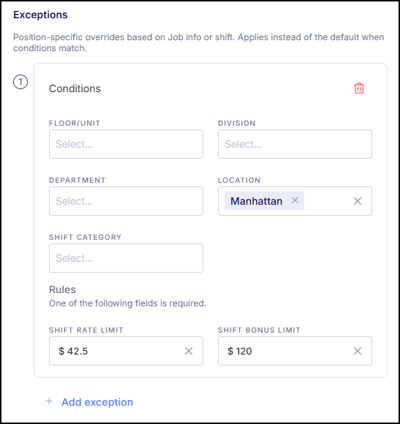
Multiple conditions established here will create more particular circumstances for when these rate and/or bonus limits would be enforced. There can be multiple exceptions set up as needed.
Work categories
Work Categories are used to accommodate unique work situations during an assigned Shift where the employee is not performing their normally assigned job responsibilities. These situations can include scenarios where the employee is still working during the Shift, such as attending training or a convention, or when they are not working, like jury duty or bereavement.
Work Categories are created for these unique work situations and applied to the assigned Shifts during which they take place. They are configured to account for any impacts the temporary change in the employee's responsibilities will have on the Shift's budget, and if necessary, apply the appropriate Earning Code (other than Regular) for the hours recorded during the Shift.
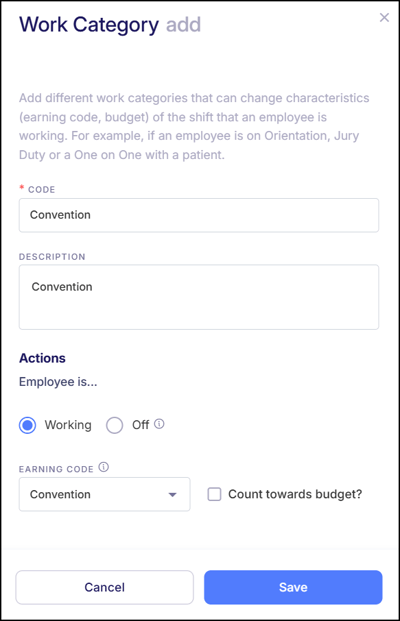
In the scenario where an employee is attending a two-day convention during their assigned Shifts on Monday and Tuesday, a Work Category for "Convention" can be set up and assigned to these Shifts. Since the employee will not be onsite, the 'Convention' Work Category can be set up to exclude these Shifts from the budget, effectively removing this person from the budget's headcount. If needed, the Work Category can also apply an Earning Code for 'Convention' to these Shifts as well.
When setting up a new Work Category, the setup will depend on whether the event occurring during the Shift requires the employee to work or not.
- "Worked" Work Categories - If the employee will still be working during their assigned Shift, but not within their designated Budget, it will prompt for the following:
- Code - Enter a unique code that best identifies the Work Category.
- Description - If desired, provide a brief description applicable to the Work Category.
- Employee is... - This should be set to "Working" to indicate the employee will still be working during the Shift.
- Earning Code - Choose the appropriate Earning Code to reflect how the work will be recorded.
- Count towards budget? - Indicate whether the hours worked under this Work Category should be included in the Budget. Leave this box unchecked if the employee should be removed from the Shift's budget when this Work Category is assigned.
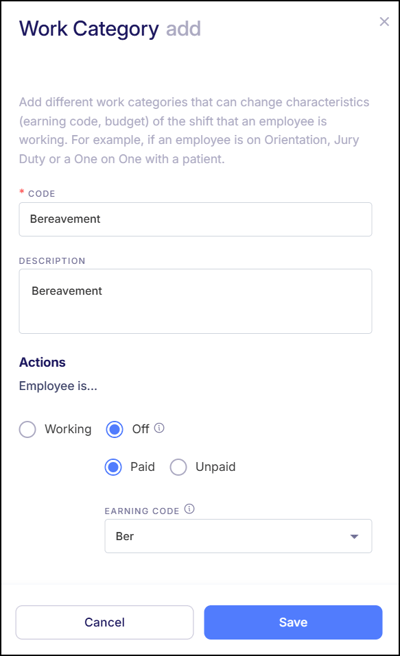
- "Non-Worked" Work Categories - If the employee will not be working during their assigned Shift, but still needs to be accounted for in terms of pay or time off, it will prompt for the following:
- Code - Enter a unique code that best identifies the Work Category.
- Description - If desired, provide a brief description applicable to the Work Category.
- Employee is... - Set this to "Off" to indicate the employee will not be working during the Shift.
- Paid/Unpaid - Indicate whether this event should be paid or unpaid.
- Earning Code - If the Work Category is set to Paid, select the appropriate Earning Code.
Please also note that "Non-Worked" Work Categories will automatically remove the employee from being counted toward the Shift's budget when this Work Category is assigned.
Be sure to click "Save" after configuring the Work Category. To learn more about how to apply Work Categories to assigned Shifts, please refer to Empeon's article Assigning Work Categories.
Budget and census
The settings within this section further define how Budgets are enforced. Click the "Edit" pencil to view and maintain the following settings:
- Schedule Over Budget Severity - This setting determines how the scheduling system handles situations where assigning a Shift to an employee would exceed the budget. The three options here are:
- Allow - Allows the assignment even if the Shift goes over the Budget.
- Warning - If assigning a Shift would exceed the budget, a warning appears indicating that the assignment would surpass the budget. The option to proceed is still available.
- Restrict - This rejects any attempt to assign a Shift that would exceed the budget.
- Auto Calculate Census - Any time the Census is updated, it will automatically populate the same amount for the upcoming days as well. This helps to streamline the entry of census information especially for periods of days with the same census numbers.
- Schedule Pattern Census - This value represents the census applied to Schedule Patterns and may differ from actual census levels. Typically, this value is used to establish baseline staffing budgets for Schedule Pattern-based scheduling. Census tracking by Floor/Unit can be applied here if there have been Budgets set up with Floor/Unit filters.