
What are Shifts?
In Empeon's Advanced Scheduling module, Shifts define the time frame that work is performed. After a Shift is configured, it is then assigned to a Budget, which defines the criteria such as employee eligibility, staffing requirements, and any applicable work assignments are defined.
Shifts on their own represent only when work takes place. They establish the Start and End times, any associated Lunch Duration, and the Shift Category (Day, Evening, or Night). Once created, a Shift can be used in multiple Budgets, which allows the same timeframe to support different scheduling rules without duplicating the Shift.
Managing Shifts
To view and maintain Shifts, navigate to the Scheduling section of the Company tab and select the Budgets Card.
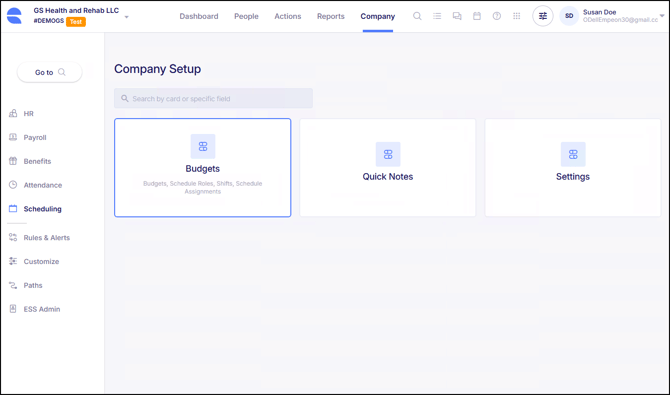
Then within the Budgets Card, select the section for Shifts.
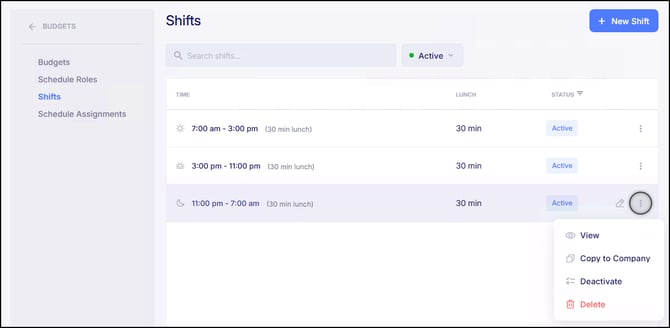
For each Shift, there is a pencil icon that allows for the ability to Edit the Shift and a three-dot menu provides options to View, Copy to another company, Deactivate, and Delete.
Please note that a Shift can only be deleted if it has yet to be assigned toward a Budget, otherwise it will need to be deactivated.
Adding Shifts
To add a new Shift, click the blue button labeled "+ New Shift" in the top right corner of the screen. When adding a new Shift, the follow settings are prompted:
- Shift Category - Establish whether the Shift is considered the Day, Evening or Night shift.
- Start/ End - Establish the Start and End times for the Shift.
- Lunch - Enter the duration for all unpaid breaks and lunches, that employees assigned to this Shift should clock out for. This duration will automatically be deducted from the Total Hours worked during the Shift.
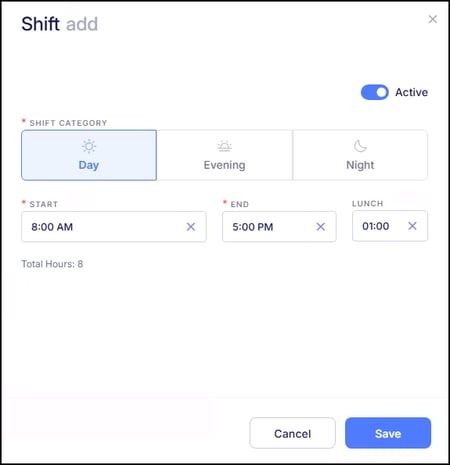
Once these fields have been established, click "Save" to finalize the Shift. After saving the Shift, it is ready to be assigned toward a Budget. For instructions on how to assign Shifts toward a Budget, please refer to Empeon's article Budgets.