
What are Budgets?
The Budgets section defines the staffing requirements that apply to the schedule. Each Budget combines employee eligibility, shift timing, and workload rules to determine when a shift becomes available and how staffing needs are calculated.
A Budget links a Schedule Role to a specific Shift and, when applicable, a Schedule Assignment. This configuration establishes who can fill the shift, when the work occurs, and what type of work is being performed. Budgets also determine staffing headcount criteria, defining how many employees are required for a given Shift and what days of the week those requirements apply on.
Once configured, Budgets and their associated Shift is what gets assigned on the schedule.
Managing Budgets
To view and maintain Budgets, navigate to the Scheduling section of the Company tab and select the Budgets Card.
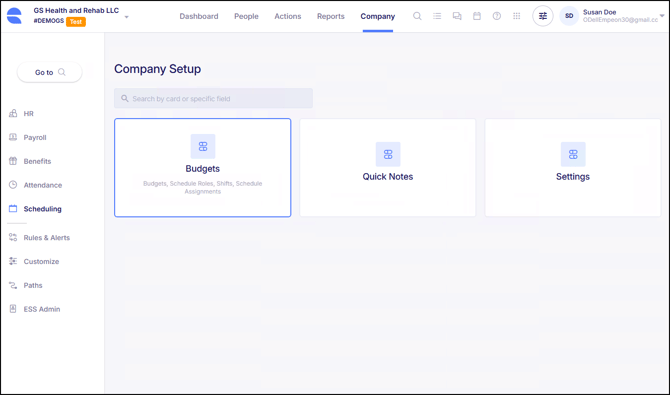
Then within the Budgets Card, select the section for Budgets.
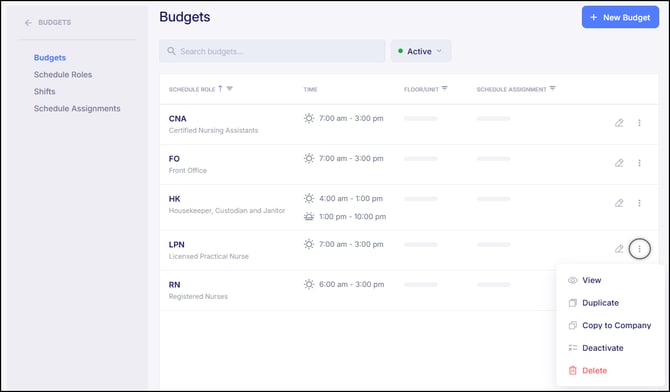
The dashboard will display all Budgets that have been set up with the following columns for quick information on how each Budget has been configured:
- Schedule Role - Displays the Schedule Role assigned to the Budget.
- Time (Shift) - Displays the Shift(s) assigned to the Budget.
- Floor/Unit - Displays the Floor/Unit assigned to the Budget, if one is assigned.
- Schedule Assignment - Displays the Schedule Assignment to the Budget, if one is assigned.
- Budget - Displays the Budget details IF the Budget Type is "Budget".
- HPPD - Displays the Budget details IF the Budget Type is "HPPD/Ratio".
- Status - Displays whether the Budget is Active or Inactive.
A pencil icon allows for the ability to Edit the Budget, while a three-dot menu provides options to View, Duplicate, Copy to another company, Deactivate, or Delete it. Please note that a Budget can only be deleted if it has yet to be assigned, otherwise it will need to be deactivated.
Adding a Budget
To add a new Budget, click the blue button labeled "+ New Budget" in the top right corner of the screen. When adding a new Budget, first part will prompt for the following settings:
- Schedule Role - Select the Schedule Role that defines which employee position(s) are eligible for this Budget. This determines who can be scheduled for the Shift linked to the Budget. This is a required field as all Budgets must have a Schedule Role assigned.
- Shift - Select the Shift(s) that this Budget applies to. This sets the timeframe that the Budget applies to. This is a required field as all Budgets must have a Shift assigned. If multiple Shifts are added to a budget, please note that the budget criteria established will apply toward all Shifts collectively, not individually. This allows staffing to flex between Shifts as needed, which is especially useful for roles such as custodial or housekeeping staff where coverage might fluctuate per day and not per Shift.
- Floor/Unit - If applicable, select the Floor/Unit where this Budget applies. Other Job Info criteria such as Location and Department can be added here to further refine the Budget. The availability of these fields however is determined within Scheduling Settings and what is selected within the Shift Location Field.
- Schedule Assignment - If needed, select a Schedule Assignment to further clarify the type of work or task being performed during this Budget. This is helpful when multiple Budgets share the same Schedule Role and Shift but involve different tasks.
- Color - Assign a color to the Budget for easy visual identification on the schedule. This helps differentiate Budgets at a glance and improves schedule readability.
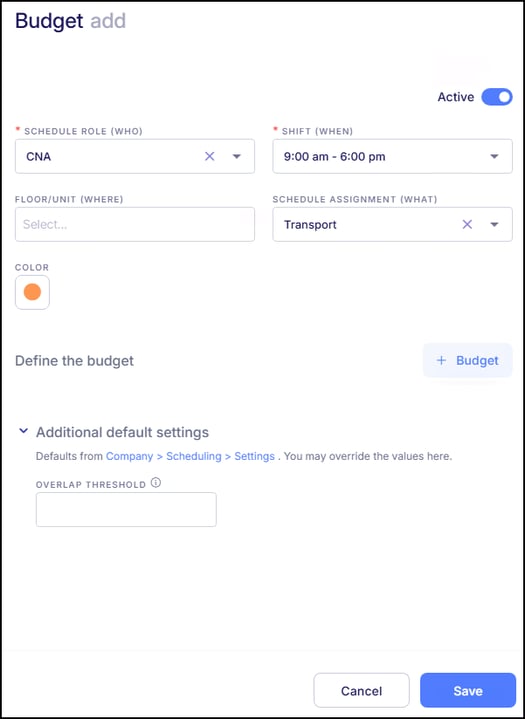
The next part after establishing the logistics of the budget, is defining the budget itself. To do this click on "+ Budget".
A Budget sets a threshold for the minimum number of employees needed for the Shift that is linked to the Budget, ensuring that there is adequate coverage. There are two Budget Types available for establishing a budget within a Shift:
HPPD/Ratio
The HPPD/Ratio method is designed for facilities that require HPPD reporting. It references the daily Census that is being tracked, which is a section within the Schedule where daily patient headcount is recorded on an ongoing basis. This method is ideal for facilities with fluctuating census levels, as it ensures staffing levels will automatically adjust based on patient volume.
When setting up a HPPD/Ratio budget, it will first prompt for which days of the week the budget should apply to. In scenarios where there should be different budgets on different days of the week, multiple sets of budgets will need to be set up differentiating the days of the week accordingly.
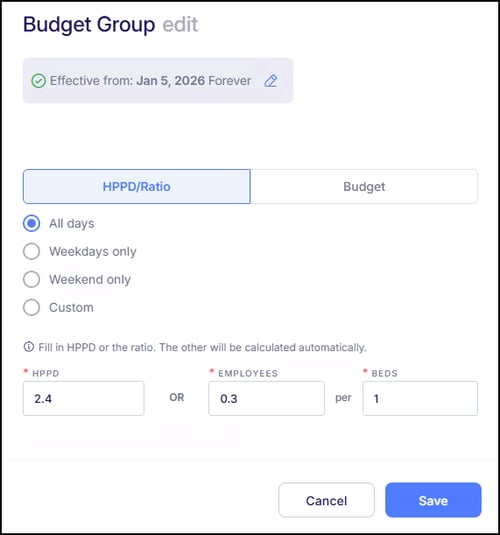
After establishing which days the budget should apply to, the next step is to enter the staffing requirement for the budget. When using the HPPD/Ratio method, this can be done by entering either the HPPD value or the number of employees needed per bed.
HPPD (Hours Per Patient Day) represents the total number of staff hours required per patient in a 24-hour period. This value is typically derived from internal staffing targets or HPPD reporting and tracking and represents the number of staff hours required per patient.
When an HPPD value is entered, the system automatically calculates the corresponding number of employees needed per bed. Likewise, entering the number of employees per bed will automatically calculate the HPPD value. By default, calculations are based on one bed, but the beds value can be adjusted as needed to reflect the actual staffing model.
In the example above, the HPPD value is 2.4 hours per bed (the number of staff hours required per patient), and the Census for the day is 40 patients, the system will calculate 96 hours of coverage is required (2.4 multiplied by 40). For an 8 hours Shift that is linked to this Budget, the system will calculate the budget to be 12 employees needed for that day (96 total hours divided by an 8-hour shift).
Budget
The Budget method can reference census tracking if needed, or it can be configured to ignore census entirely and apply a fixed staffing requirement to the Shift. This method is based on defining staffing by hours or headcount rather than by HPPD.
When using the Budget method, it will first prompt for which days of the week the budget should apply to. In scenarios where there should be different budgets on different days of the week, multiple sets of budgets will need to be set up differentiating the days of the week accordingly.
When using the Budget method, staffing can be entered in one of two ways: Number of Employees or Budget Hours, which represent the total number of hours required to staff the Shift. Entering a value in either field will automatically populate the other based on the length of the Shift. For example, if the linked Shift is 8 hours long and 3 employees are entered, the Budget Hours will automatically calculate to 24.
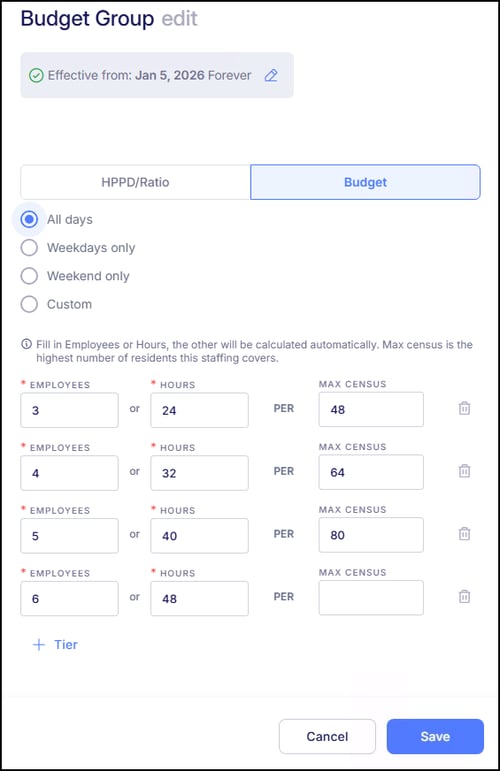
An optional Max Census field can be used to link the Budget to the Census. If the Max Census field is left blank, the Budget entered will apply at all times, regardless of what the Census is for the current day.
However, when a Max Census value is entered, the Budget becomes linked to the Census. In the example above, there are four budget tiers that calculate the Budget as follows:
Tier 1: When the Census is 1-48, the Budget is 3 employees
Tier 2: When the Census is 49-64, the Budget is 4 employees
Tier 3: When the Census is 65-80, the Budget is 5 employees
Tier 4: When the Census is 81 or more, the Budget is 6 employees
Additional Settings
Before saving the Budget, there additional settings to consider located within the Additional default settings section.
The Overlap Threshold setting defines the amount of time, in minutes, that one Shift can overlap with the next scheduled Shift for the same employee. This overlap allows for continuity in coverage by permitting a controlled transition between Shifts without creating scheduling gaps.
A default Overlap Threshold can be established at the company level within the General settings of the Scheduling Settings Card. The value entered on the company level will apply to all Budgets by default, unless it is overridden here within each individual Budget.
The fields for Margin Before and Margin After operate in conjunction with the Use Schedule Lockout Rule located within the Attendance Settings card. If specific Budgets should have different margin rules than what is established on the company level, these fields can be used to override them for only the Shifts linked to this Budget. Margins entered here are in HH:MM (Hours:Minutes) format.
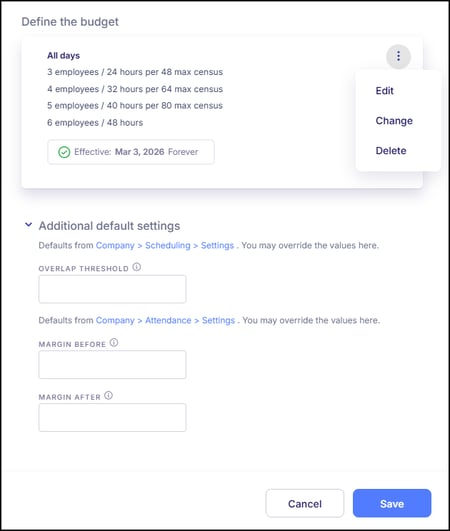
Once all fields have been established, click "Save" to finalize the Budget. After saving, the Budget is available to be assigned on the schedule to employees. This can be handled manually in either the Employee View or Daily View of the schedule, or through a recurring Shift Schedule Pattern for an employee. For additional guidance on setting up or maintaining Budgets, contact Empeon Customer Support.