
What are Schedule Assignments?
In Empeon's Advanced Scheduling module, Schedule Assignments define the type of work being performed when linked to a Budget. They are used to further distinguish Budgets that share the same Schedule Role and Shift by identifying the specific work or task being scheduled.
Schedule Assignments are not required for every Budget that is set up, but they become necessary when the same employees may perform different types of work within the same shift timeframe. In these scenarios, Schedule Assignments allow each type of work to be scheduled and budgeted separately while still using the same Schedule Role and Shift.
Schedule Assignments do not control employee eligibility or schedule availability on their own. They work in combination with Schedule Roles, Shifts, and Budgets to provide additional clarity and control over how work is defined and applied on the schedule.
Managing Schedule Assignments
To view and maintain Schedule Assignments, navigate to the Scheduling section of the Company tab and select the Budgets Card.
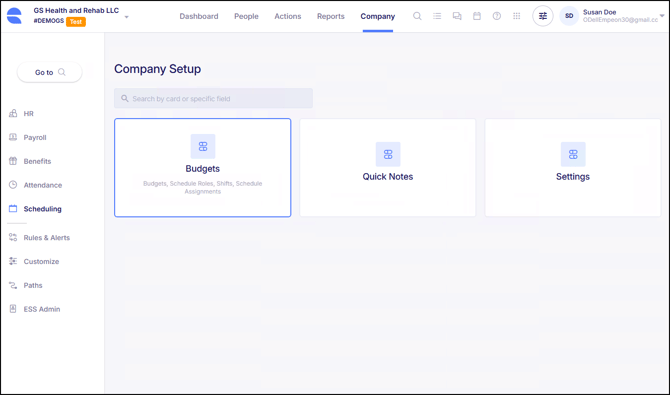
Then within the Budgets Card, select the section for Schedule Assignments.
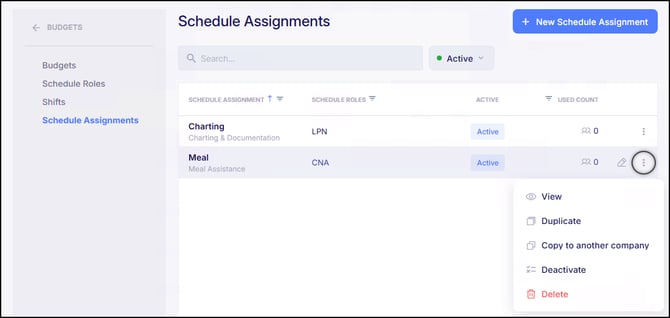
For each Schedule Assignment that has been set up, there is a "Used Count" column that displays the total number of Budgets the Schedule Assignment is associated with. There is also Schedule Roles column to view what Schedule Role(s) has been assigned to the Schedule Assignment.
A pencil icon allows for the ability to Edit the Schedule Assignment, while a three-dot menu provides options to View, Duplicate, Copy to another company, Deactivate, or Delete it. Please note that a Schedule Assignment can only be deleted if it is not currently assigned to any Budgets.
Adding Schedule Assignments
To add a new Schedule Assignment, click the blue button labeled "+ New Schedule Assignment" in the top right corner of the screen. When adding a new Schedule Assignment, the following settings are prompted:
- Code - Enter a code of up to 10 characters that identifies the type of work or task.
- Description - If desired, enter a description to provide additional context or clarification for the Schedule Assignment.
- Schedule Roles - Select the Schedule Role(s) that will perform this Schedule Assignment. This makes the Schedule Assignment available to be applied toward a Budget when the selected Schedule Role(s) are also assigned toward the Budget.
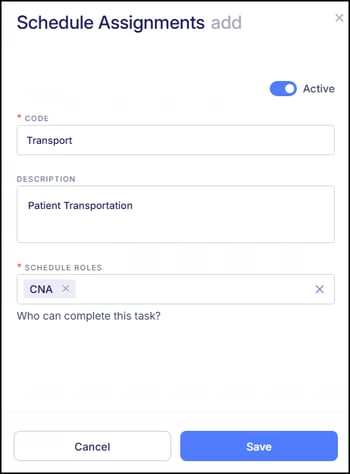
Once these fields have been established, click "Save" to finalize the Schedule Assignment. After saving, the Schedule Assignment is available to be assigned toward a Budget. For instructions on how to assign Schedule Assignments toward a Budget, please refer to Empeon's article Budgets.