
To send a Survey to multiple employees at a time, navigate to the Engage section within the Actions tab, and then select the Surveys tab.
Surveys that have already been created and shared with employees will be displayed here, with the option to share a Survey simply by clicking the associated "Share survey" button to the right of each Survey listed.
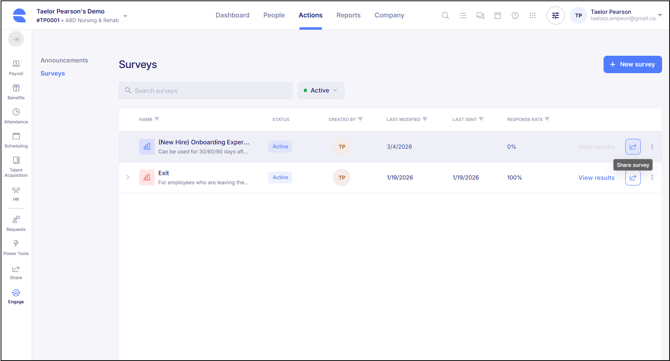
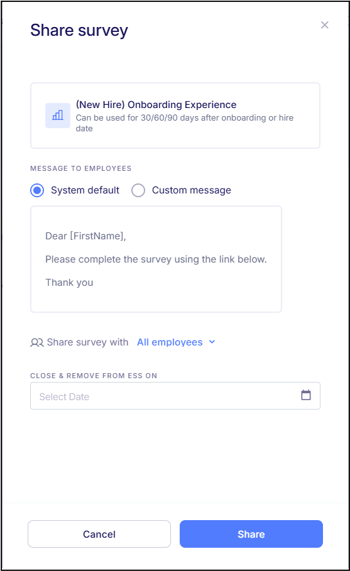
When attempting to share a survey, the system will then prompt for the following fields:
-
-
-
-
-
-
-
- Message to Employees - Use a system-generated message or create a custom message. The message entered here will be included in the email notification received by employees.
- Share Survey With - The Survey can be sent to All Employees or Specific Employees based on their assigned Cost Centers or Job Info. For example, to send this Survey only to direct care staff such as RN's, CNA's, and LPN's, select “Specific Employees”, filter by “Position”, and choose the relevant positions the Survey should be sent to.
Since there may be a need to send Surveys to individual employees, there are additional fields to choose specific employees that should be included or excluded from being a recipient. - Close & Remove From ESS On - Set an expiration date to define how long the Survey remains accessible on the ESS Hub to employees.
- Message to Employees - Use a system-generated message or create a custom message. The message entered here will be included in the email notification received by employees.
-
-
-
-
-
-
After all fields have been completed, click “Share” to send the Survey to the selected recipients. These recipients will receive an email notification alerting them that a Survey has been sent. The Survey can be accessed through this email or directly from the Inbox in their ESS Hub.
Please note that when sharing a Survey this way to multiple employees, only Active Employees are available as recipients. At this time, surveys cannot be sent to terminated employees in scenarios where they need to engage in a exit survey, or included within Onboarding Templates for newly hired employees. For employees to receive a survey, they must be in an Active status within Empeon Workforce.
After sharing a Survey, it is important to monitor the progress and completion status for each recipient that Survey was sent to. For guidance on this, please refer to Empeon's article Viewing Survey Results.