
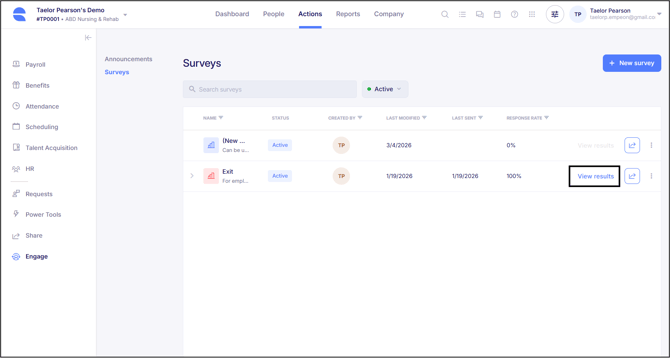
Once a Survey has been sent to employees, it's important to ensure that the questions within the Survey are completed within a timely manner. To view the ongoing and submitted progress of Surveys that have been shared, navigate to the Engage section within the Actions tab and select the Surveys tab.
Surveys that have already been shared with employees will be displayed here, and for each Survey, there is a “View Results” button that shows the results for each recipient.
When viewing the results of a Survey that has been shared, there are two review tab options available - Questions Summary and Employees.
Questions Summary Tab
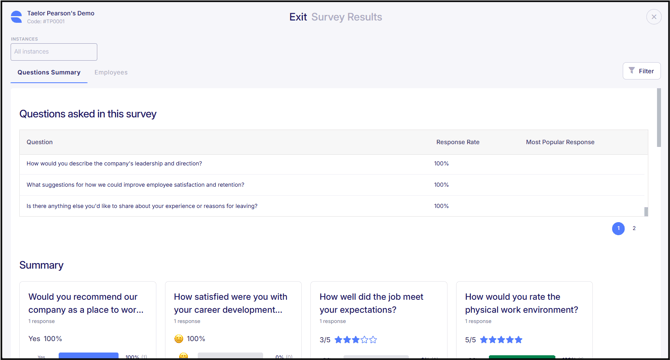
This screen displays all questions that were asked and the responses submitted. These are split into two sections.
The Questions Asked in this Survey section will provide a list of all questions, their response rate, and the most popular submitted response.
The Summary section will show a card for each question and outline the averages for the answers selected. For questions in which a custom text entry was allowed, the entries will be listed within the card.
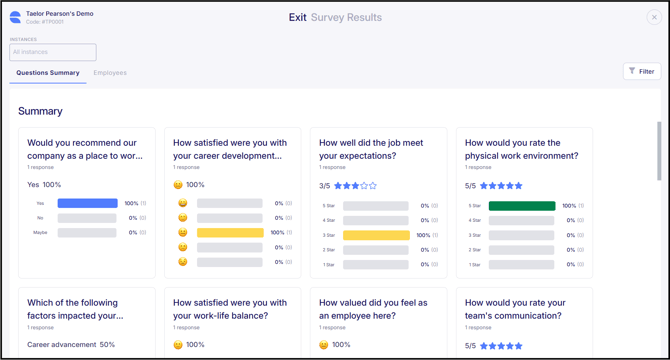
This screen can be filtered to show summary results from a specific group of employees. Select the "Filter" button in the top right corner of the screen to create a new filter using employee Cost Centers or Job Information fields, or to apply a pre-existing Filter Group.
Employees Tab
This tab displays a list the names of the recipients the Survey was sent to, when the Survey was sent, the current completion status of the Survey, and the employees' responses for each question.
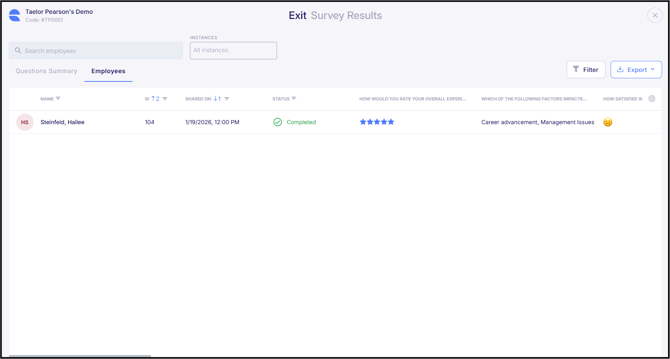
There are three possible statuses that an employee could have:
- Completed - All questions within the Survey have been completed.
- In Progress - Some questions have been completed.
- Pending - No questions have been completed.
Columns within this view can be filtered accordingly and there is also a "Filter" button to filter by employee. A search bar is available to search for individual employees as well. There is a column chooser available to choose the information that displays on this screen by selecting the Gear icon in the upper right corner. Additional columns of information can be added relating to employment status, type and Cost Center or Job Information fields.
If an employee who received the Survey is not registered for the ESS Hub, it will display “No ESS Account”, indicating that the employee did not receive the Survey invitation.
At any point, the report can be exported into an Excel or CSV style report for further review using the "Export" button in the top right corner of the screen.