
Scheduling Enhancements
We have made some enhancements to our Advanced Scheduling feature. Please see below for details.
Enhanced Scheduling Settings and New Rules for Shift Rates and Bonuses
The Scheduling section at the company level has been reorganized to make configuration easier and more consistent. The previous “Scheduling Rules” and “Work Categories” cards have been combined into a new Settings card within Company > Scheduling, which now consolidates all foundational scheduling controls into one place.
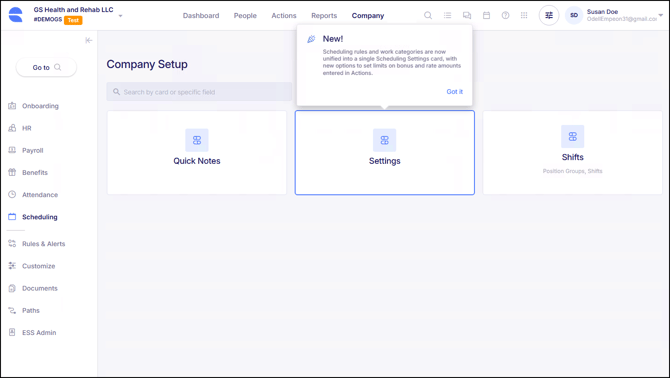
Within the new Settings card, users will still be able to manage Schedule Rules and Work Categories as before, only now there is an additional configuration for rates and bonuses that can be applied toward a shift. This section of the Settings Card is called Rate and bonus limits.
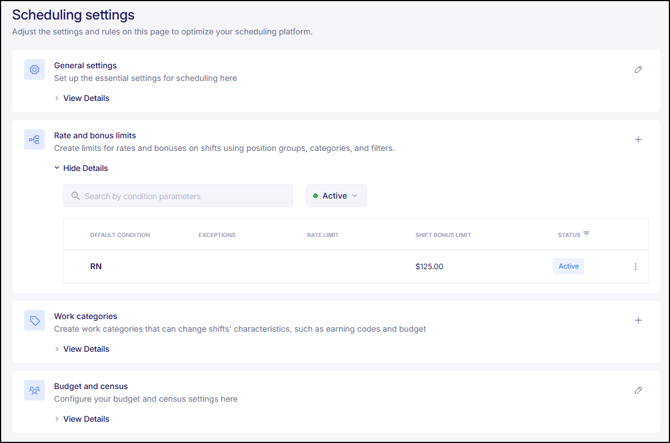
This feature allows organizations to create rate and bonus limits for shifts linked to designated Position Groups. Once established, these rules are automatically enforced throughout the scheduler when adding a rate or bonus to a shift. Exceptions can also be defined based on Job Info criteria or Shift Categories to accommodate situations where different rates or limits are required.
In scenarios when a scheduler is attempting to apply a rate or bonus, the system will:
- Notify the scheduler of the applicable limit
- Prevent adjustments that exceed the maximum amount
- Block rate or bonus entry if no limits have been configured
In instances when no limits have been configured, schedulers with the appropriate permissions will be directed to this configuration page in order to establish these rules and limits. This enhancement to our Scheduling feature provides a more streamlined experience for administrators and ensures that rates and bonuses are applied consistently within the organization’s established guidelines.
Daily Schedule Report Now Available in Excel
The Daily Schedule report can now be exported in Excel format. Previously available only as a PDF, the report now includes a new Excel (.xlsx) option, allowing users to work with the data more flexibly outside the system.
The Excel export includes the report header, date, and key scheduling details such as employee name, position, shift times, and any quick notes. Standard grouping and filtering options used in the report remain supported. This enhancement makes it easier to sort, analyze, and share scheduling information in a format many teams prefer for daily operations.
Assign Documents to Employee Profile Cards
When uploading a document into the Document Library, there is a new field for "Card", which determines the section of the Employee Profile where the document will appear after it is sent to and completed by an employee. This applies whether the document is sent manually, included within a Path, or incorporated into an Onboarding Template.
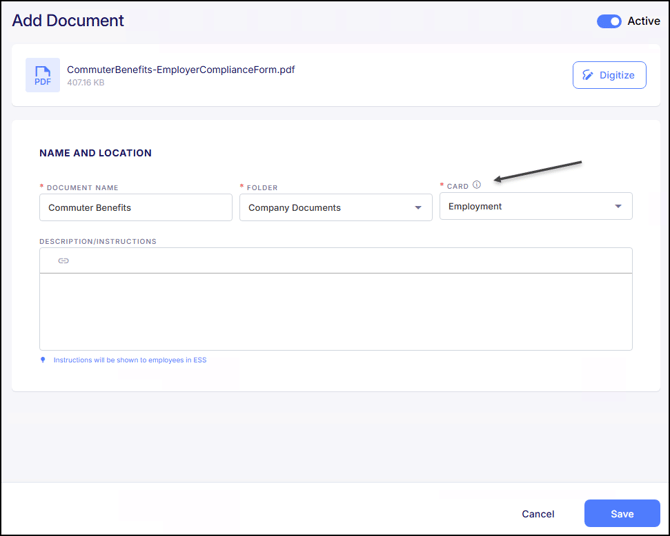
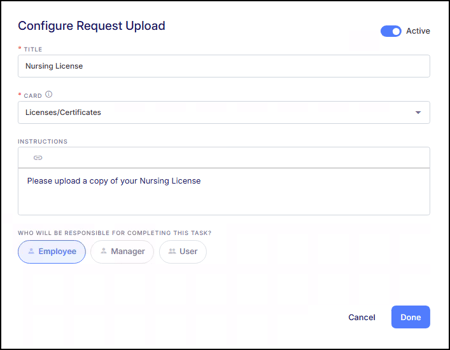
This enhancement also applies to document upload steps within Paths and Onboarding Templates. When configuring a step that requires the recipient to upload a file, the new Card field identifies where the uploaded document will be stored within the Employee Profile. This ensures that uploaded documents are automatically organized in the correct section of the profile once submitted
Documents that were previously uploaded into the Document Library can now be updated with a Card assignment at any time. When a Card is added to an existing document, the system will update each employee profile to place that document in the designated Card section for all employees who have already received and completed it.
For documents uploaded directly by employees, Card assignments are managed within the Docs section of the employee profile. These documents are not maintained in the Document Library and must be assigned or updated at the employee level. The Docs section of each employee profile also includes filtering by Card, making it easier to view which documents fall under each profile section. Documents can also remain attached to their designated Card even if none of the fields within that Card have been filled out.
Access to documents continues to be controlled by role permissions. Users can only view, edit, or delete documents if they have the appropriate permissions for both the document and the assigned Card. This enhancement streamlines document management by ensuring that all documents, whether uploaded by administrators or employees, are organized consistently within the Employee Profile.
Enhancements to Empeon's OT Tax Deduction Wizard
Last release, we introduced the new Overtime Tax Deduction Card to support the overtime tax deduction requirements under the One Big Beautiful Bill Act (OBBBA). This release includes three enhancements that improve accuracy, reduce manual steps, and support year-end processing.
Overtime Wizard Validations Based on Existing Company Settings
The wizard now uses the company’s existing overtime configuration to pre-fill key fields and prevent selections that conflict with the current setup. When blended overtime is already in use, the blended calculation will pre-fill and remain fixed. The OT Premium earning code will also pre-fill based on the company’s settings. If any required overtime codes are missing during setup, the wizard will display a warning. These updates help guide users through a cleaner setup and prevent configuration mistakes.
Year-End Portal Import File Management
Within the Year-End portal, for clients choosing not to use Empeon’s calculations through the OT Tax Deduction Card and instead importing this data into the system, file uploads can now be downloaded or deleted as needed. This update gives users more control and flexibility over managing their year-end overtime data.
W2 Calculation Error When Overtime Setup Is Skipped
Some clients reported an error when attempting to calculate W2's after skipping the Overtime Tax Deduction setup. This issue has been resolved. If the setup is incomplete, the system will now direct users back to the Overtime step so they can complete the necessary configuration before proceeding without losing any of their progress.
E-Verify Enhancements
Recently, Empeon released a new E-Verify feature that streamlines employment eligibility verification directly within Empeon Workforce. This integration allows employers to verify Form I-9 information automatically with the U.S. Department of Homeland Security and Social Security Administration, eliminating the need to manually enter employee data into a separate system. Please see below the enhancements we've made to this feature.
I-9 and E-Verify Experience Updates
This release includes updates to ensure the I-9 and E-Verify experience is accurate and compliant. Onboarding employees will see updated form language that reflects the latest USCIS I-9 requirements. In addition, E-Verify case numbers are now automatically associated with the corresponding employee I-9, providing clear documentation and ensuring compliance with federal verification rules.
E-Verify Dashboard Loading Indicator
Previously, when opening the E-Verify dashboard, the screen sometimes displayed "No data" while information was still loading. This release adds a loading indicator so that users know that data is available but still in the process of loading.
New Dashboard Widget: Clock Device Status
A new Clock Device Status widget is now available on the Dashboard, providing a quick, view-only overview of all configured time clocks. This allows clients to easily see the current status of each clock without navigating away from the landing page.
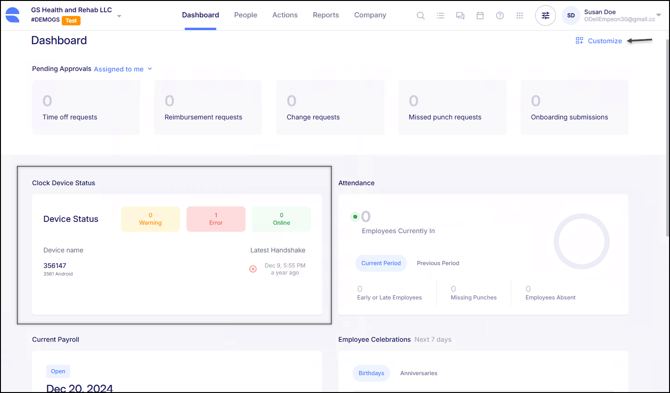
The widget displays a snapshot of all registered clocks, showing whether each device is online, offline, or experiencing potential connectivity issues. For companies with multiple clocks, a “See All” button will be displayed to allow users to view the status of every device in a single pop-up window.
Clients can manage this widget through the Dashboard’s “Customize” option, which allows them to turn the widget on or off and rearrange the order of cards. For optimal visibility, it may be helpful to place the Clock Device Status widget near the Attendance widget to keep track of both employee time data and clock connectivity at a glance.
This feature is view-only; any troubleshooting or connectivity issues must be addressed directly with the time clock hardware.
Company Time Zone Setting in Attendance Configuration
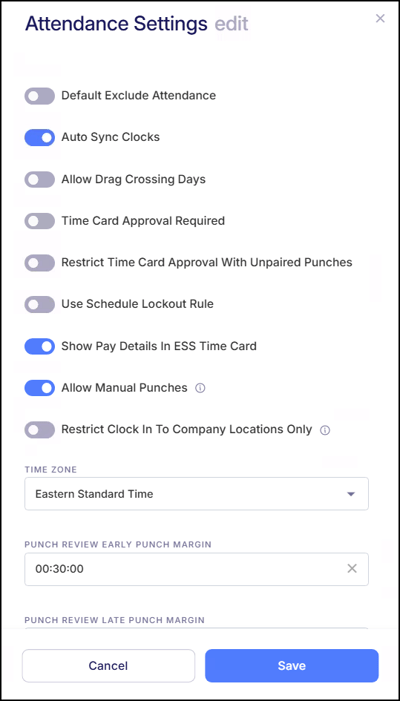
A new Time Zone field has been added to Company > Attendance Settings, allowing administrators to set their organization’s time zone directly from the frontend. This ensures that attendance activity, punch times, and related calculations reflect the correct local time.
The Time Zone dropdown defaults to the value established during company setup but can be updated at any time. If a time zone is not selected, the system will continue to use the employee’s job location as the default. All standard U.S. time zones are supported.
New Approved to Work Live Report
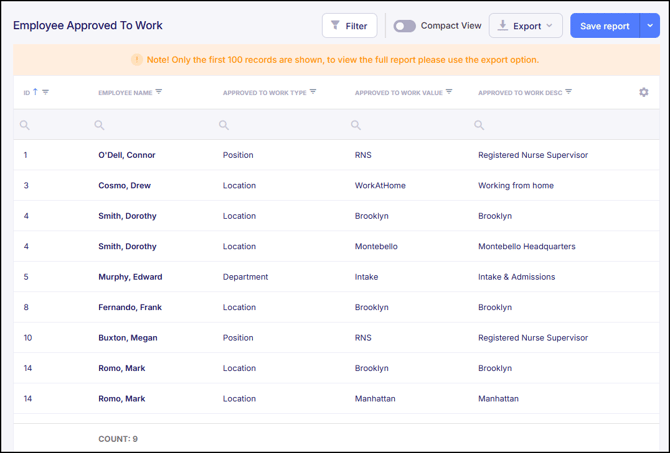
A new Live Report is now available to help track Approved to Work assignments recorded in the employee profile. This report lists employees who are authorized to work in additional positions, departments, or locations beyond their primary assignment. When an employee has multiple Approved to Work entries within their profile, each assignment will appear on its own row within the report, making the report easier to use for audits, reviews, and integrations with other systems.
Show Totals Only as Default for Labor Distribution and Payroll Register
The default setting for both the Labor Distribution and Payroll Register standard reports has been updated to "Show Totals" only. Previously, the default settings for these reports included both Show Details and Show Totals. Since users often turned off the Show Details option and because having it turned on required more data for the report to be saved within Empeon Workforce, Show Details is no longer selected by default. This change does not prevent users from toggling it back on when initially running the report.
For saved reports that never had an explicit option selected, the default has now been set to Totals Only. Reports where a selection was previously made remain unchanged. Users can still manually enable "Show Details" on any report if more detailed information is needed.
Full SSN Reveal in ESS
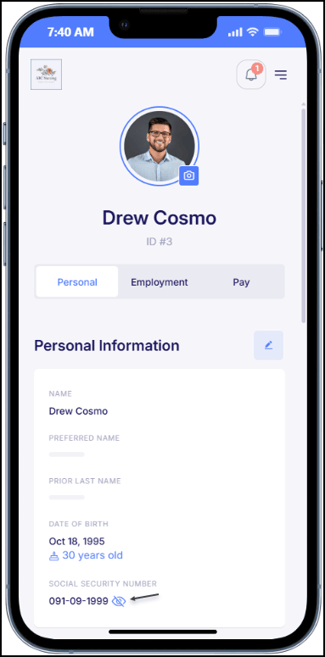
Employees can now view their full Social Security Number (SSN) in their ESS Hub when reviewing their profile. Previously, employees could only see the last four digits of their SSN, with the rest of it being masked. With this enhancement, the SSN will continue to display only the last four digits by default, but employees can now select an unmask option to view the full Social Security Number. This update helps employees confirm whether their SSN on file is accurate and supports cleaner data during year-end processing.
SSN Masking on Employee W-2 Copies
To support stronger security practices, employee-facing W-2 copies will now display a masked SSN by default, showing only the last four digits. This applies to printed W-2's, ESS W-2's, and the copies stored in the File Room. The full SSN will continue to appear on all W-2 forms that are submitted to government agencies.
An option has been added to the Year-End Portal within Delivery Info that allows clients to choose to show the full SSN on employee copies if desired. A tooltip is included explaining that masking the SSN on employee copies is permitted by the IRS and helps reduce identity theft risks.
Additional Quick Filter Options
Quick filters have been expanded to include several new employee fields. New available filter options include:
- Employee Type
- Union Code
- Pay Group
- Filing Form
- Length of Service (LOS) Months
These additions provide more efficient ways to filter for the employees needed.
Onboarding Template Enhancements
We have made some enhancements to our HR Premium Onboarding feature. Please see below for details.
Accurate Timestamping for Onboarding Document Signatures
An enhancement has been made to improve how electronic signature times are recorded for documents completed during onboarding. Previously, electronically signed documents within an onboarding template showed the timestamp of when the overall onboarding process was finished, rather than the actual moment the employee applied their e-signature. This created challenges for clients who needed immediate proof of a signed document before the employee completed the full onboarding workflow.
The system now records the exact time each document is signed and displays that timestamp on both the document and the related audit reports. This provides more accurate documentation and supports scenarios where timely verification of a signed form is required.
Updated I-9 Experience for Passport Document Uploads
The I-9 process within any Onboarding Template has been updated so that employees must upload both the Passport ID page and the Passport Signature Page. This ensures employers have complete documentation for I-9 compliance when a passport is used for verification.
File uploads must be in JPG, PNG, or PDF format and no larger than 4MB. Files exceeding this size will not be accepted. The Passport Signature Page will not be sent to E-Verify and will remain in the employee’s file for employer reference if needed during an audit.
Survey Results: Cost Centers Now Available in Column Chooser
Survey results now include the option to add Cost Centers via the column chooser. This allows users to include Cost Center information in the employee view and ensures it is included when exporting survey data.
Bug Fixes
- Company time zones using the Import Companies tool: Previously, all imported companies were defaulting to Eastern Standard Time (EST), regardless of the address provided in the import file. This caused issues for companies operating in other time zones, as their settings did not reflect their actual location. The system now correctly assigns the appropriate time zone based on the company’s primary address during import.
- Inactive departments were incorrectly exported to the time clock: The system previously included departments marked as Obsolete when exporting departments to the clock, causing inactive departments to appear in clock configurations. This issue has now been resolved. Only active departments will be exported going forward, ensuring cleaner data and preventing outdated departments from appearing in the clock.
- Export Departments to Clock Error with Multi-Line Codes or Descriptions: There were some reported instances where exporting departments to the clock would fail if a department code or description included multiple lines. This issue has now been fixed, and exports will process correctly regardless of line breaks in the department information.
- Employee Import Errors with TaxMaps: There have been reported cases where importing more than 50 employees would display an error when Empeon's TaxMaps was enabled. This issue has now been resolved, ensuring larger employee imports complete successfully when TaxMaps is active.
- MTA TaxMaps Calculating Regular Taxes in Onboarding: There were some reported cases where, for companies using only MTA TaxMaps, the system would calculate all state and local taxes during employee onboarding instead of only the MTA zone taxes. This could cause validation errors when certain state tax codes were not set up. The issue has been fixed, and now the system correctly calculates only MTA zone taxes during onboarding.
- Onboarding tabs were displaying mismatched data: When navigating to People → Onboarding, the Assigned to Me tab appeared selected, but the grid incorrectly displayed results from the Others tab. This visual mismatch caused confusion for users reviewing onboarding assignments. The issue has been corrected so that the selected tab and displayed data now stay perfectly aligned.
- Cost Center Fields Now Correctly Auto-Populate on Onboarding Documents: There were some reported cases where digitized documents with auto-populated Cost Center fields did not display values when sent through an Onboarding Template. This issue was caused by Job Info being mapped to the Cost Centers. The system has been updated so that auto-populated fields for any Cost Center now populate correctly, even when mapped with Job Info.
- Added a friendly error message when Pivot Reports fail due to invalid characters: Previously, certain Pivot Reports would fail to export without explanation, often caused by the report name containing invalid characters, such as the “/” symbol, which are not permitted for file downloads. To prevent confusion, the system now displays a clear, user-friendly error message whenever an export cannot be generated due to unsupported characters in the report name.
-
Company Admin Unable to Edit Roles: There were a few reported cases where a Company Admin with User Management permissions could no longer edit roles they had created. This issue has been resolved, and admins can now update roles as expected.
- Rate Change Request Attachments Now Display Correctly: Previously, documents attached to Rate Change Requests were not appearing in the interface, preventing users from reviewing supporting files. This issue has now been fixed. All uploaded documents now display properly within the Rate Change Request details, ensuring approvers can access and review attachments as intended.
- Rate Change Request Adjustments Affecting Other Requests: There were some reported instances where adjusting the rate on a pending Rate Change Request would also apply the same adjustment to all other pending Rate Change requests. This issue has now been fixed.
- Corrected Sequential Calculation for Multiple Garnishments: Previously, a system defect was causing multiple garnishment deductions assigned to the same calculation code to calculate simultaneously, which incorrectly reduced an employee’s disposable income below the required protected wage threshold. This issue impacted scenarios where employees had multiple state garnishments or a combination of child support and state garnishments. This has now been corrected.
The system will properly calculate these deductions sequentially, ensuring required protections are maintained:-
Child Support (when present) is always calculated first.
-
State garnishments using the same calc code now factor in the disposable-income reduction from previously applied deductions before calculating.
- Protected wage rules (such as the 30× minimum wage weekly threshold) are now enforced correctly for each garnishment in order.
-
-
This update ensures compliance with state rules and prevents disposable income from dropping below mandated protected levels. The temporary workaround of limiting employees to one active garnishment is no longer necessary.
- Employee Schedule Report Filter Now Returns Correct Data: When filtering the Employee Schedule Report by a specific employee, the report was not returning the correct schedule information. In some cases, the data shown was incomplete, inaccurate, or did not correspond to the employee selected in the Employee Filter. This issue has now been fixed.
- Imported Employees Now Adhere to the Default Exclude Attendance Setting: There were some reported cases where new employees created through the Employee Import process were incorrectly included in Time and Attendance, even when the Default Exclude Attendance setting (found within Attendance Settings) was turned on. This issue has been fixed.
- Timecards Could Be Deleted by Users Without Proper Permissions: There were some reported cases where users who did not have the Allow Edit of Non-Manual Punches permission were still able to delete punches or remove an entire timecard. This behavior did not align with the intended permission structure. The issue has now been resolved. Users without this permission can no longer delete affected punches or timecards, and the delete option is hidden as expected.
- Employee Pay Entry Redirect in Payroll Verification: Some users reported that when previewing a payroll, selecting an employee’s name redirected to the employee profile instead of the employee’s Pay Entry record. This issue has been fixed. Clicking an employee’s name during payroll preview now correctly opens the corresponding Pay Entry record.