
Schedule Roles on their own within Empeon Workforce are simply just codes that represent a position or group of positions. Schedule Roles are necessary within Empeon's Advanced Scheduling feature because they determine who is eligible to be assigned toward Budgets. Budgets determine how staffing requirements are calculated and applied on the schedule. Scheduling Roles tell the system which employees, based on their assigned position, can work the Shift.
Since all Budgets require a Schedule Role to be assigned, Schedule Roles must be created before setting up any Budgets. They can be tailored to individual positions for specific needs or include multiple positions for greater flexibility. For example, in a healthcare facility, a Schedule Role might include both Registered Nurses (RN's) and Licensed Practical Nurses (LPN's), allowing eligibility for both positions to fill the Budget.
An added function of Schedule Roles is that they will also display as tabs along the top of the schedule within both the Employee View and Daily View. These available tabs within the schedule provide a quick and efficient way to filter the schedule in order to display only the employees assigned to a specific Schedule Role.
Managing Schedule Roles
To view and maintain Schedule Roles, navigate to the Scheduling section of the Company tab and select the Budgets Card.
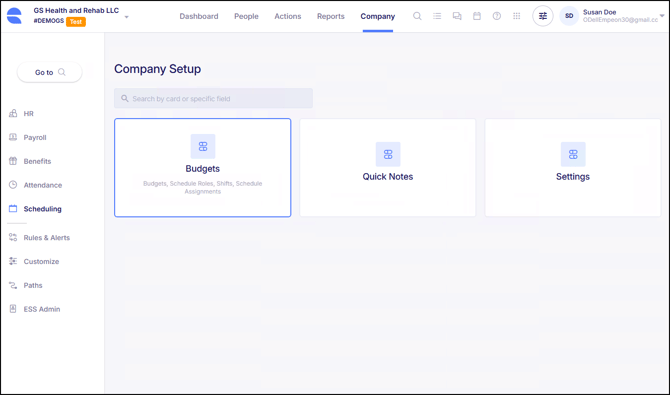
Then within the Budgets Card, select the section for Schedule Roles.
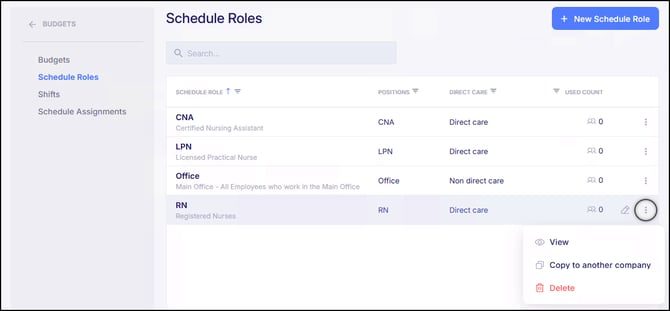
For each Schedule Role that has been set up, there is a "Used Count" column where it will display the total number of Budgets that the Schedule Role has been assigned to. The count will include all Budgets, including those that may be deactivated.
A pencil icon allows for the ability to Edit the Schedule Role, while a three-dot menu provides options to View, Copy to another company, and Delete it. Please note that a Schedule Role can only be deleted if there are no Budgets currently assigned to it.
Adding Schedule Roles
To add a new Schedule Role, click the blue button labeled "+ New Schedule Role" in the top right corner of the screen. When adding a new Schedule Role, the follow settings are prompted:
- Direct Care - If toggled on, only Job Info Positions that have been set to "Direct Care" will be available to be assigned toward this Schedule Role.
- Code - Enter a code of up to 10 characters that best reflects the Schedule Role.
- Description - If desired, enter a description to provide further details about the Schedule Role.
- Positions - Assign the appropriate Positions by clicking into the field to open a dropdown menu. The dropdown will display all Positions set up within Job Info, so it's important to confirm the setup of each Position prior to configuring the Schedule.
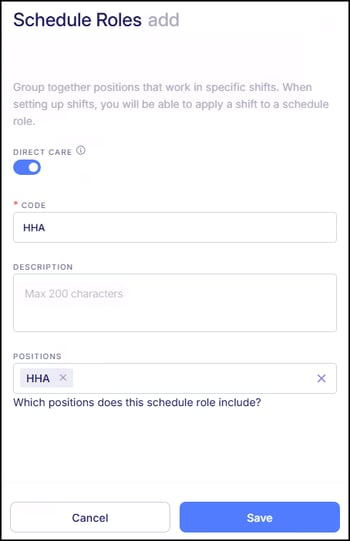
Once these fields have been established, click "Save" to finalize the Schedule Role. After saving the Schedule Role, it is ready to be assigned toward a Budget. For instructions on how to assign Schedule Roles toward a Budget, please refer to Empeon's article Budgets.