Additional Features
Along with the ESS Hub's Primary Features, additional features and functions may be available to employees based on their employer's suite of services with Empeon. Access to these features may vary from employee to employee and will depend on the employer's discretion. Employees seeking confirmation on the availability of these features should check with their HR or Payroll department.
ESS Hub Inbox & Chat
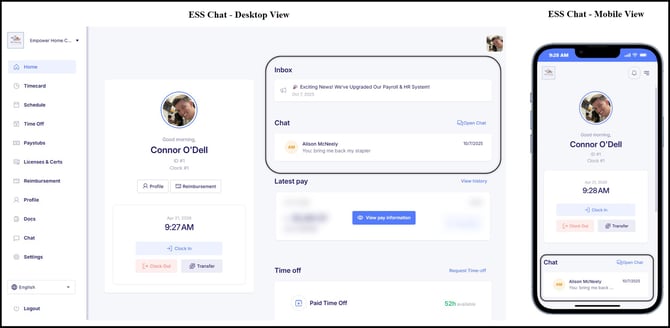
All employees have access to their ESS Inbox, which serves as a direct channel for employers to share general communication with them. Messages in the ESS Inbox are employer-initiated, similar to an email inbox, and employees cannot respond directly.
For clients enrolled in Empeon’s HR Premium feature, the ESS Chat feature can be enabled to support two-way communication. This allows employees to message designated Workforce Users and engage in real-time, back-and-forth conversations. While the ESS Inbox is designed for one-way, broadcast-style communication, the Chat feature provides a more immediate and interactive way for employees and employers to connect.
Profile Editing
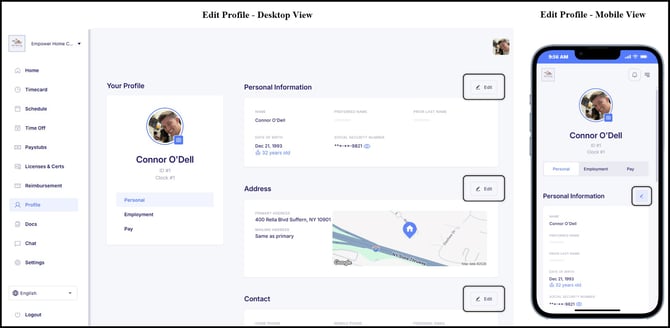
In addition to viewing information within their ESS Profile, employees can be granted with the permissions to edit this information as well. Employee self-management of this information can be particularly beneficial and timesaving for Workforce Users when employees need to make changes to items like their contact information, address, direct deposit account(s) or tax filing status. When granted access, employees will see an "Edit" button in the top right of the respective section they wish to edit.
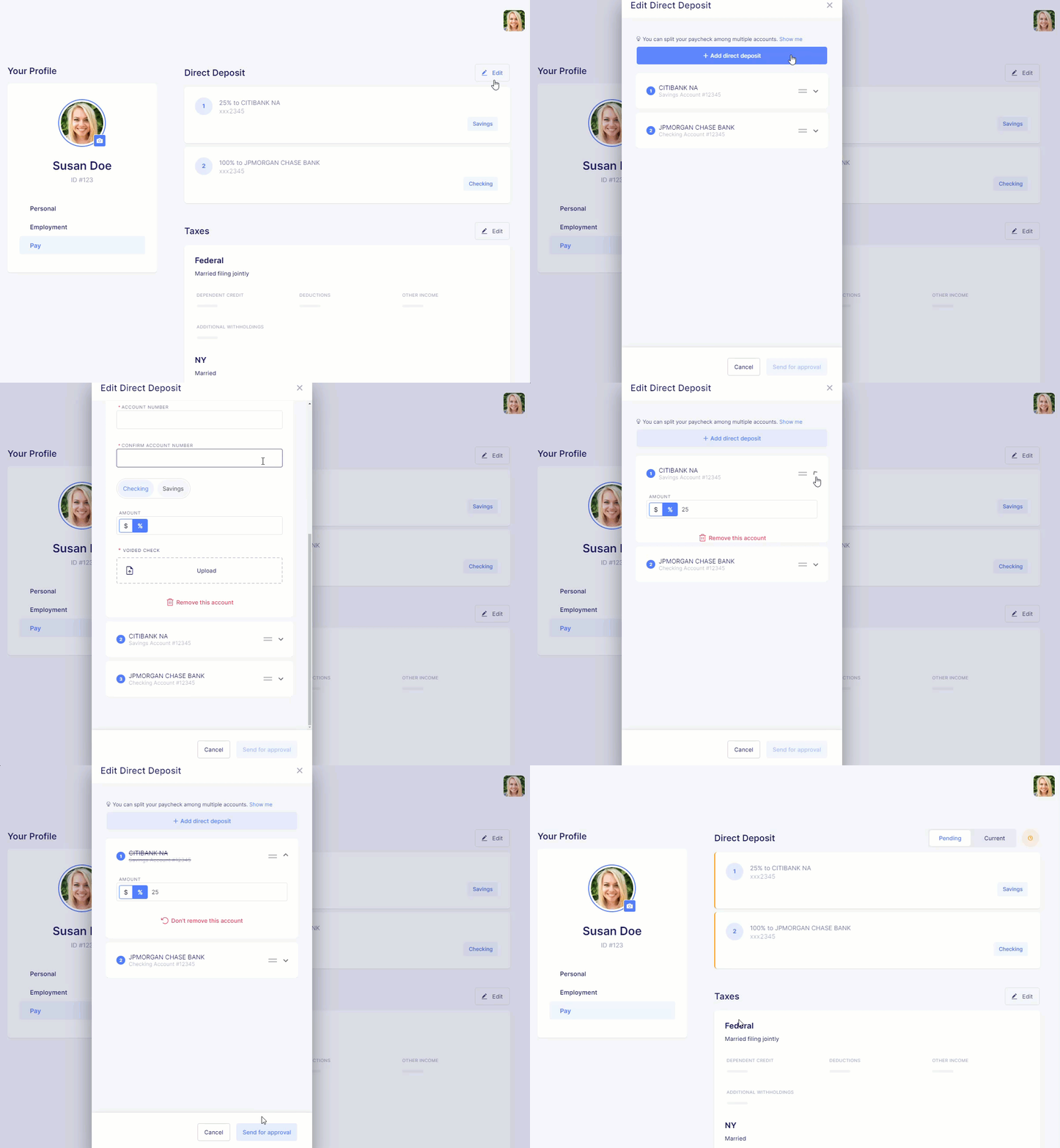
The ability to edit profile information can be configured so that changes are either instantly updated within the system or submitted to designated "Assignees" for review. The review process, particularly for sensitive items like tax information and direct deposit details, helps ensure the accuracy and correctness of the changes made by employees.
For example, with Direct Deposit, employees can add multiple accounts with varying amounts or percentages. However, if the order of these accounts is not set up correctly, it can lead to issues when payments are made. This is why a review process is beneficial, ensuring that the setup aligns with the employee's intentions and avoids potential payment errors.
With Taxes in particular, any changes made to federal taxes by the employee will automatically populate a new W4 form for the employee to sign and have stored within the system. For clients utilizing Tax Maps, tax changes will always require an approval process so that the reviewer can ensure the changes are accurate.
Timecard
For organizations using Empeon’s time and attendance feature, employees who track their time through recorded punches will have access to the Timecard section in the left-hand menu. This section allows employees to view their recorded hours for both current and past pay periods.
Based on permissions set by the employer, employees may also be able to make a "fix" request for missed or inaccurate punch records. Timecard adjustment requests require the employee to leave a comment before sending the changes to the employer for approval.
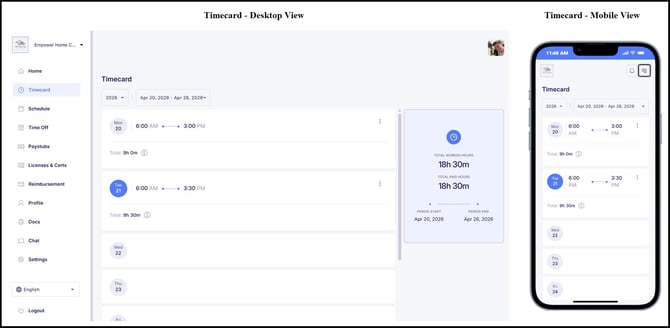
Employers also have the option to allow employees to clock in and out directly through the ESS Hub. This can be enabled for web, mobile, or both, depending on the organization’s preferences. When this feature is active, employees will see clock in and clock out options available on the Home Dashboard of the ESS Hub.
Time Off
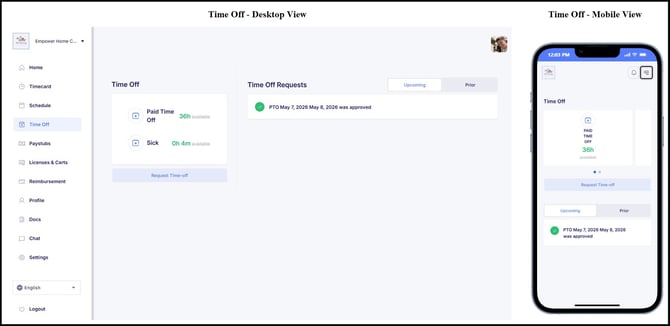
For employers tracking their accrual policies (PTO, Vacation, Sick, etc.) in Empeon there will be a Time off widget on the ESS Home Dashboard for employees to view their balances. By default, this will display as "view only" for the employee. However, employers also have the option to turn on the ability for employees to request time off using the ESS Hub. If activated, a tab on the left-hand menu for "Time Off" will be available and within this section is where employees can view their accrual balances and submit time off requests. Within this section, employees can also view the status of their upcoming time off requests as well as past dates where time off was taken.
Reimbursement
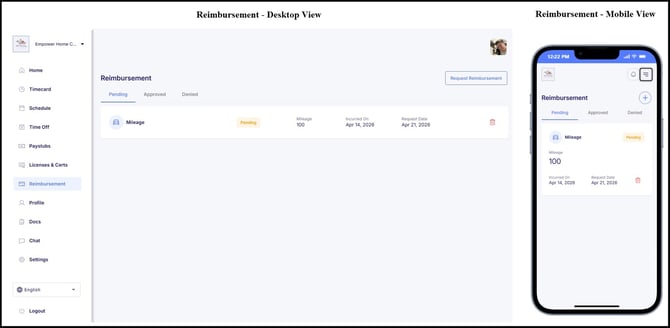
Another useful feature an employer can activate is the ability for employees to request reimbursements within the ESS portal. If this feature is activated, there will be a tab on the left-hand menu for "Reimbursements" where employees can go to submit a reimbursement request while also view any pending, approved, or denied reimbursements that have been made.
Schedule
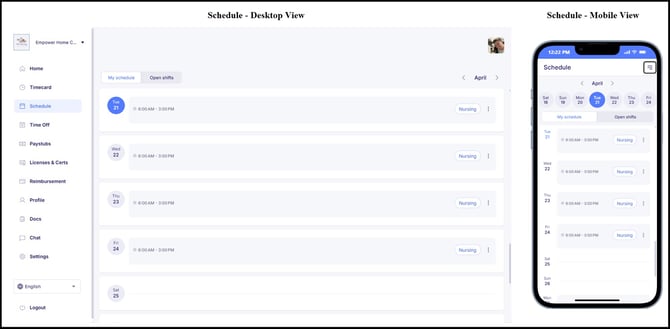
For organizations utilizing Empeon's Advanced Scheduling feature, there will be a "Schedule" tab on the left-hand menu for employees to review their assigned schedule. On this tab, employees can view their assigned schedule and also check for any available open Shifts that may have been posted by their employer. Posted Shifts can be requested by employees and added to their schedules once approved by management. Employees are notified about open Shifts via their ESS Inbox and, if enabled, through text message notifications set in Empeon's Notification Settings.
Additionally, employees may also have the ability to request "Callouts" if this is a permission that has been set up and made available to them through Empeon's Request & Approval feature. If the employee happens to be sick or needs to miss their assigned Shift on short notice, there will be a "callout" option where they can request a Shift Callout and indicate their reasoning for why they need to miss the Shift. From there, this request will require approval from a Workforce User in order for the schedule to be updated accordingly.