
What is the Home Dashboard?
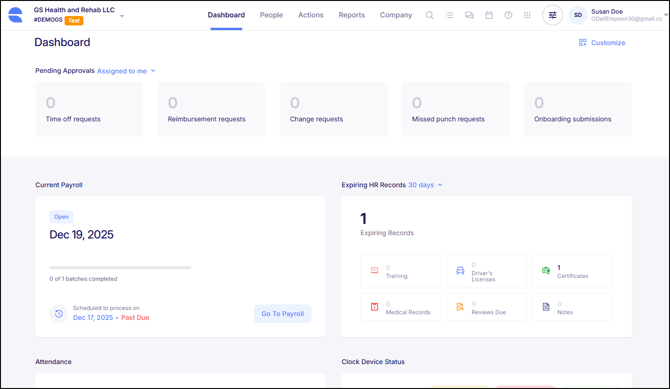
The Home Dashboard is the landing page that appears after logging into Empeon Workforce. It provides a high-level snapshot of key payroll and workforce activity, along with quick access to commonly used areas of the system. The dashboard is designed to alert users of time-sensitive information, highlight items that may need attention, and reduce the number of steps required to navigate to important tasks. The layout of the dashboard can be customized, allowing each user to control which information appears and the order in which it is displayed.
Pending Approvals
The top section of the Home Dashboard is the Pending Approvals section, which coincides with Empeon's Request & Approvals feature. This section displays a summary count of submitted requests that are awaiting review.
By default, the section shows requests that are assigned to the logged-in user. However, there is a dropdown next to where it says "Assigned to me" that allows the view to be adjusted to display requests that are assigned to others or requests that are currently unassigned.
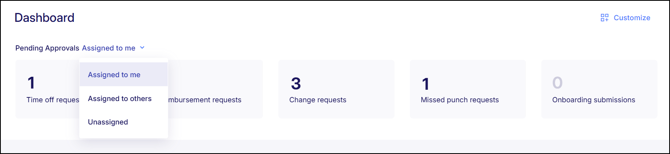
Each category for request type will display the total number of outstanding requests. Selecting any category with pending items opens the Requests dashboard, where request details can be reviewed and the appropriate action can be taken, such as approval or denial. For more insights on how to review and approve these requests, please refer to Empeon's article Reviewing & Approving Employee Requests.
The Pending Approvals section remains fixed along the top of the Home Dashboard and cannot be customized or reordered, ensuring ongoing visibility of outstanding requests that require attention.
Dashboard Widgets
Underneath the Pending Approvals section are additional Dashboard Widgets that offer quick insight into key areas of the system. Each widget acts as a summary view for a specific feature, surfacing current status information and providing direct access to take action when needed.
Payroll Widget
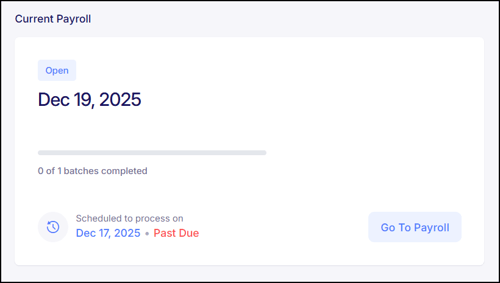
The Payroll widget provides a dashboard-style summary of the current payroll batch. It displays the current payroll status, check date, scheduled processing date, and includes a direct option to "Go To Payroll" when action is required. This widget is available to all Empeon Workforce clients.
Employee Celebrations Widget
The Employee Celebrations widget displays upcoming employee milestones to support visibility across the organization. It shows employee Birthdays and Work Anniversaries occurring within the next seven days.
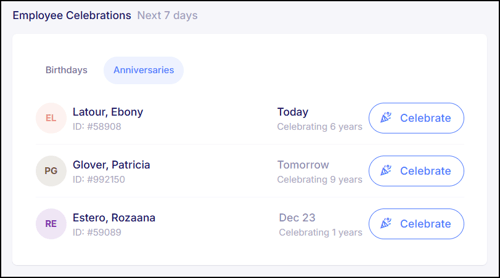
For any upcoming birthday or work anniversary, a "Celebrate" button is available. Selecting this option opens a message window where a message can be written and sent via email to the employee.
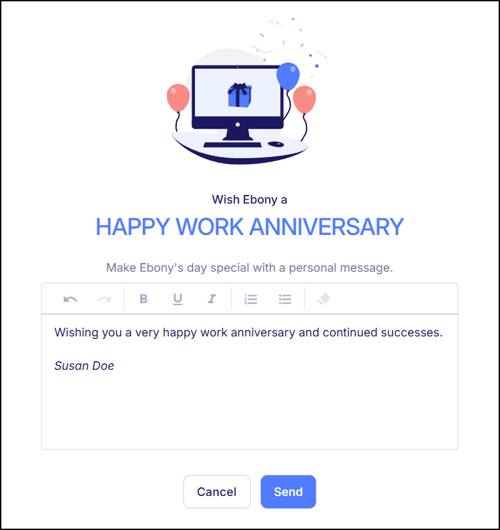
This widget is available to all Empeon Workforce clients.
Attendance Widget
The Attendance widget provides a high-level breakdown of employee time and attendance activity. For organizations enrolled in Empeon’s Time and Attendance feature, the widget displays headcounts for employees currently clocked in, employees marked absent, and punches that are missing, early, or late, with the ability to view both the current and prior periods.
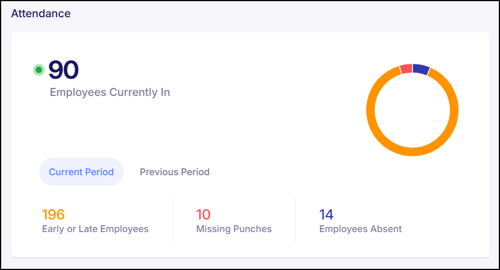
Selecting the headcount for any category opens the Time Sheet Processing screen for further review.
For organizations not enrolled in Time and Attendance, the widget will display an option to initiate enrollment in Empeon's Time and Attendance feature, unless the widget itself has been manually removed from the dashboard. Instructions on how to remove this widget can be found in the Customizing the Home Dashboard section of this article.
Clock Devices Widget
The Clock Devices widget provides a view-only snapshot of registered time clock devices and their connectivity status. It displays whether each device is online, offline, or experiencing potential issues, along with the most recent communication (Latest Handshake) between each clock and Empeon Workforce.
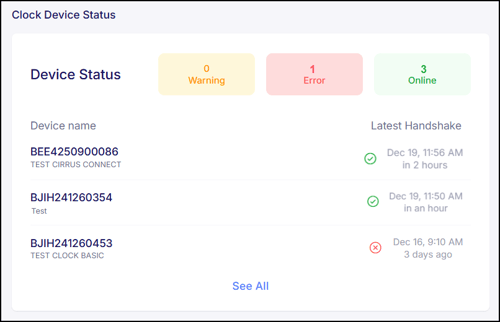
This widget displays the first three time clocks. If there are more than three time clocks that registered, there will be a "See All" button to view the status for all registered time clocks. Please note any troubleshooting or connectivity issues must be addressed directly with the time clock hardware as this widget is view-only. This widget is only available to organizations enrolled in Empeon’s Time and Attendance feature with registered time clock devices.
Expiring HR Records Widget
The Expiring HR Records widget provides visibility into employee HR records with upcoming or past-due expiration dates. It displays records related to registered Driver's Licenses, Licenses/Certificates, Medical Records, Trainings, HR Reviews, and Employee Notes. This widget can be filtered to view expiring records in the next 15, 30 and 45 days.
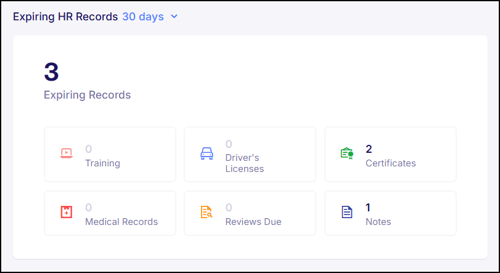
Clicking into any category opens a window displaying the employees with expiring credentials. Selecting an employee in this window will then open the employee profile in a new tab for further review and maintenance. Please note that this widget is only available to organizations enrolled in the Empeon's HR Premium service.
ACA Compliance Widget
The ACA Compliance widget provides a dashboard view of Affordable Care Act tracking and coverage offer status. For organizations enrolled in Benefits Administration with ACA Rules configured, the widget displays the company's current compliance status along with a headcount of employees who have been offered coverage. If the current status is "Not Compliant" this widget will also show a headcount of those with missing or noncompliant offers.
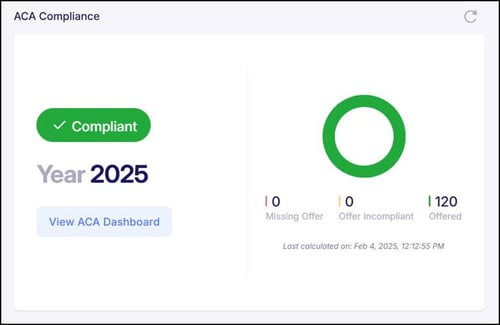
Within this widget, there is a "View ACA dashboard" button that will navigate to the ACA Dashboard for further review and action. This widget is only displays data when there are ACA Rules that are configured in Empeon Workforce.
Customizing the Home Dashboard
Empeon's Home Dashboard can be customized according to preference. In the top right corner of Empeon's Home Dashboard there is a "Customize" button.
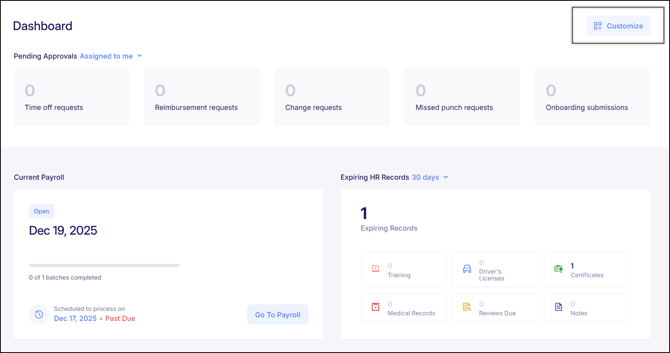
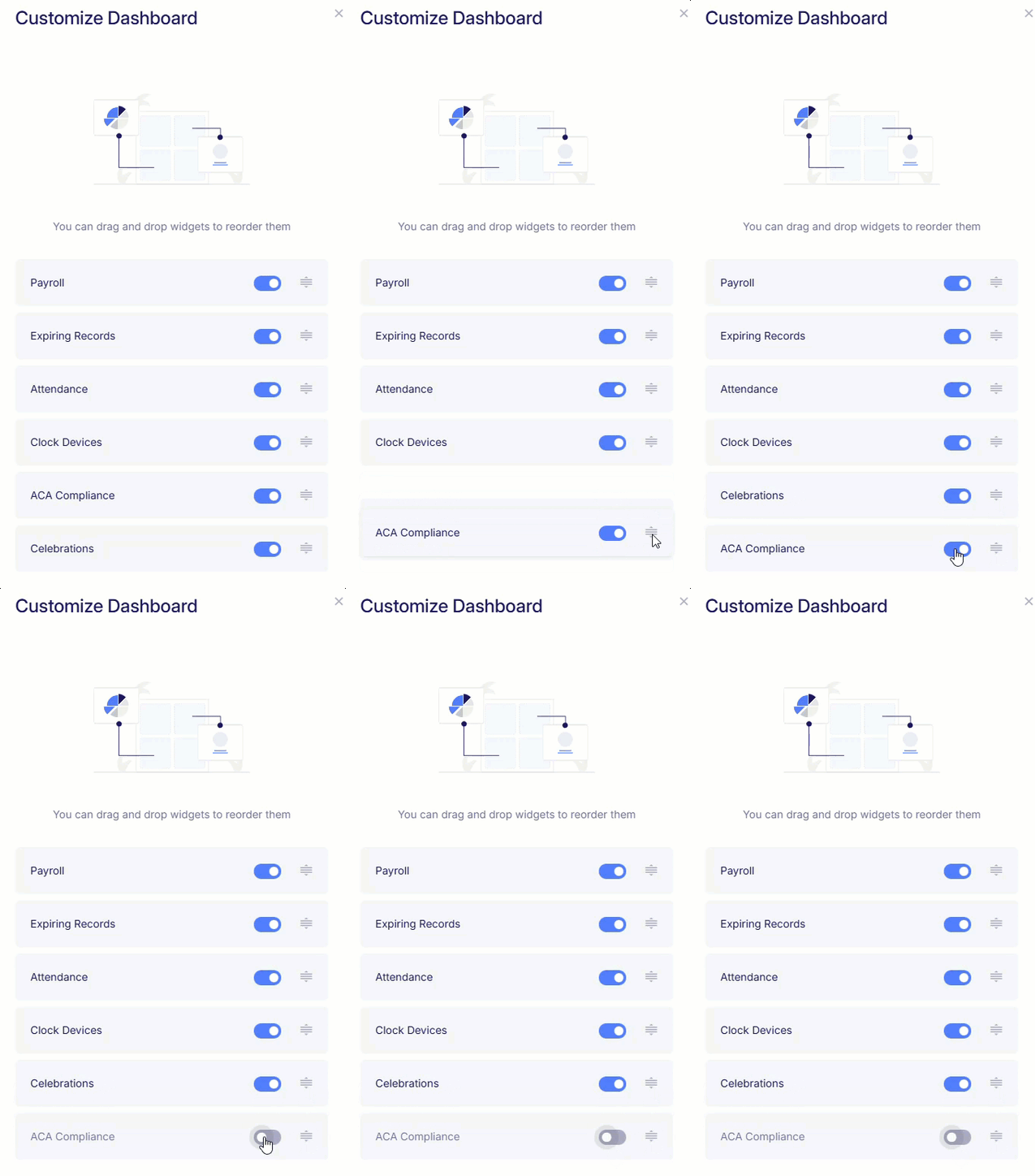
Selecting this option allows users to change the order of dashboard widgets on the Home Dashboard using the "Drag to reorder" button. Each widget also includes a toggle to turn it on or off, controlling whether the widget is displayed on the dashboard.
For questions or assistance relating to anything on Empeon Workforce's Home Dashboard, please contact Empeon Customer Support.