
Empeon’s Surveys feature provides flexible options for creating surveys that align with your organization’s goals. When creating a new survey, administrators can either build a survey from scratch or use a pre-built template. Each option is designed to accommodate different levels of customization and survey complexity.
To create a new Survey, navigate to Surveys, located within within the Engage section under the Actions tab. Then click "+ New survey".
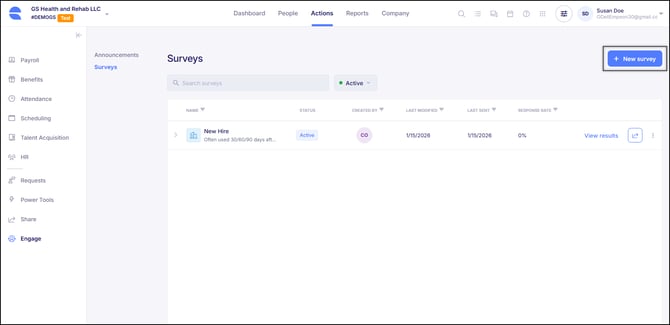
Survey Creation Options
When creating a new survey, administrators are prompted to choose how to get started.
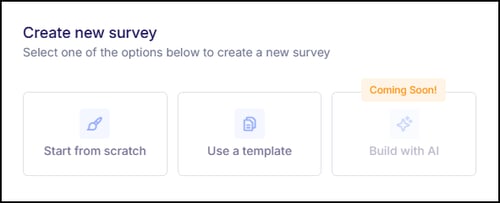
- Start from scratch - Create a fully custom survey by manually adding and configuring survey questions.
- Use a template - Start with a pre-built survey containing pre-defined questions for common workplace topics. Templates provide a strong starting point and can be customized as needed.
Whichever option is selected here, surveys are built using the same set of available question types. Each question type includes its own configuration options, which determine how responses are measured and collected.
Question Configuration
For all question types, the following fields are available:
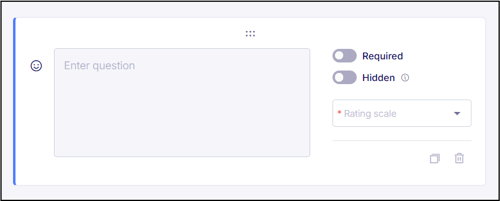
- Question - Construct the question to be posed to employees.
- Required - Specify whether the question should require engagement from employees. If selected, the question will be unable to be skipped when presented to the employees.
- Hidden - For surveys that have already been created and shared, questions can be hidden when they are no longer needed. This will prevent this question from being presented to future employees while still allowing the results from previous submissions to still be accessible.
Depending on the question type selected, there may be an additional field to configure the selection options for the answer fields.
Rating Questions
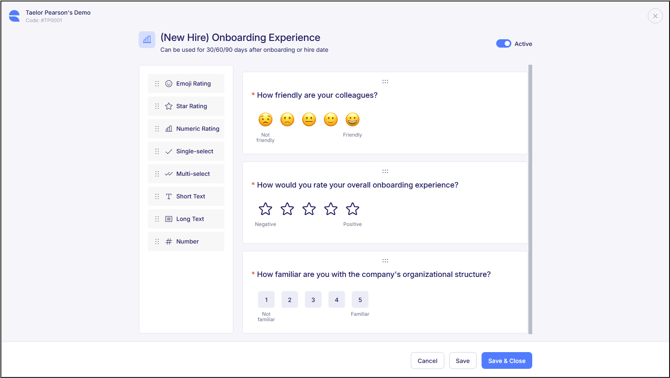
There are three available "Rating" questions: Emoji, Star, and Numeric.
For these types of questions, the Rating Scale must be chosen to align with the question being posed. The options available allow for scales based on agreement, engagement, or satisfaction levels.
- Emoji - Five-level scale utilizing Emoji face icons
- Star - One through five scale utilizing stars
- Numeric - One through five scale utilizing the numeric values
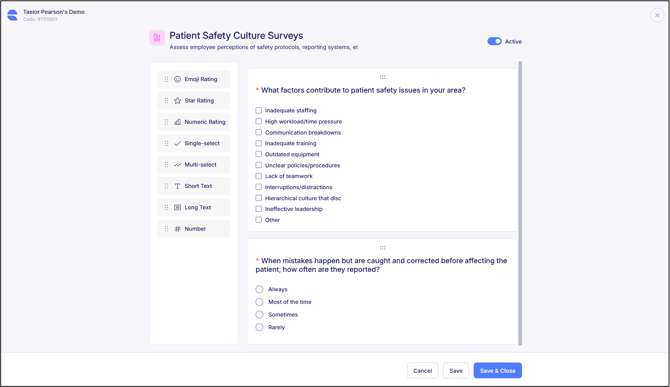
Multiple Choice
There are two "Multiple Choice" questions: Single-select and Multi-select.
For these types of questions, a question should be posed for employees to respond by selecting one or more of the provided answers. Answer options are defined by a user and there are no limits to the number of answer options that can be posed to employees.
- Single-select - Only one employee response allowed
- Multi-select - Multiple employee responses allowed
Free Text Entry
There are three "Free Text Entry" questions: Short Text, Long Text, and Number.
For these types of questions, they are posed to the employee prompting them to answer by typing their response into the answer field. No additional question configuration is needed for these types of questions.
- Short Text - Single-line response, optimal for short or single word answers
- Long Text - Multi-line response, optimal for longer feedback
- Number - Single-line response in which only numeric values can be entered
Rearranging Question Orientation
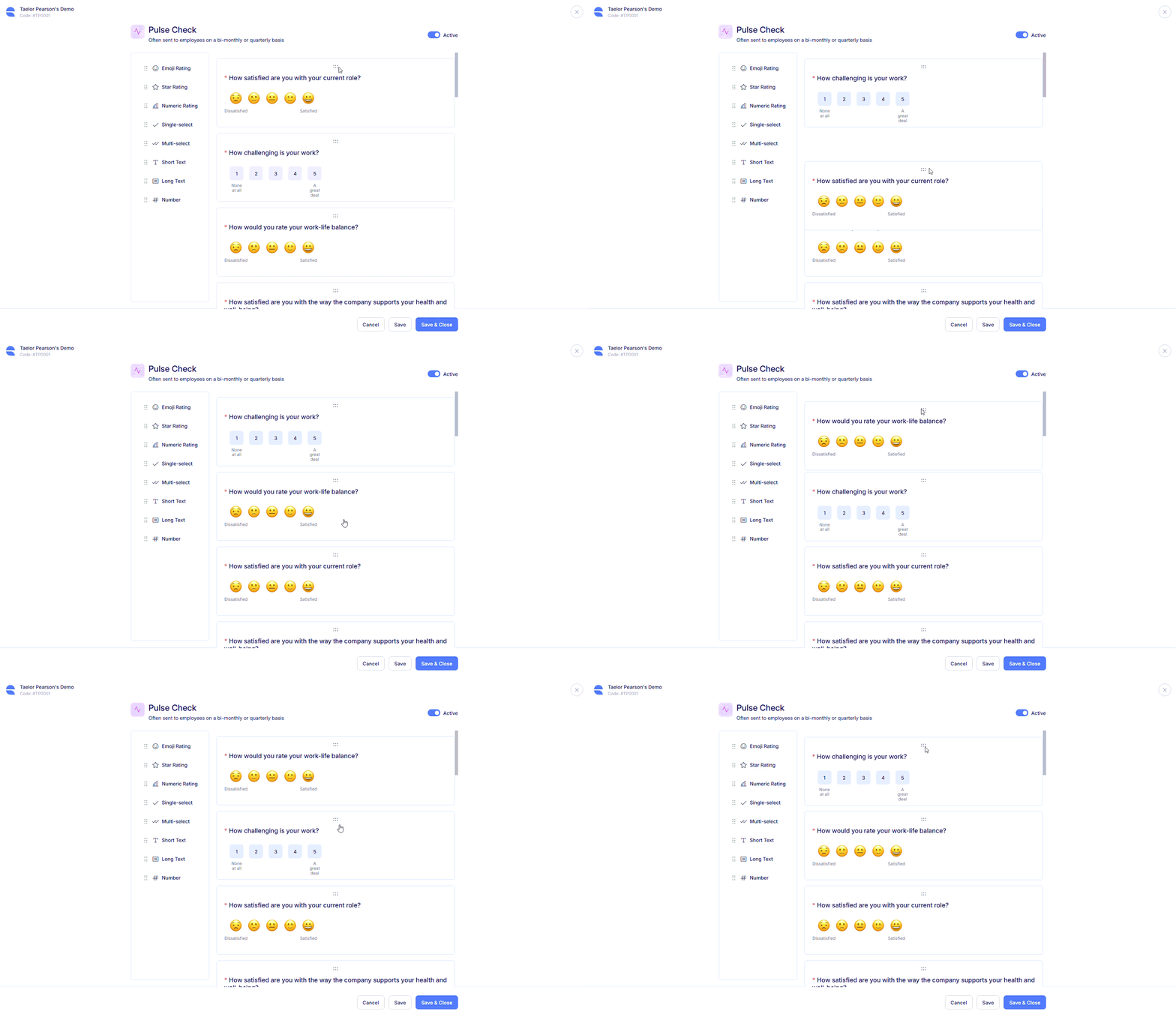
Questions appear to employees in the order displayed on the configuration screen. To reorder questions, drag and drop using the handle icon.
Click "Save & Close" to finalize the configuration of the survey. For each additional survey the company will offer, these steps will need to be repeated. Once the survey is set up, it can be shared to employees. For any guidance relating to the set up of surveys, please don't hesitate to contact Empeon Customer Support.
For more information on how surveys can be shared to employees, refer to Empeon's article: Sharing Surveys.