
What is Workers' Compensation?
Workers’ Compensation, often called Workers’ Comp, is a state-mandated insurance program that provides benefits to employees who are injured or become ill as a result of their job. These benefits help cover medical care and a portion of lost wages, and may also include disability or survivor benefits depending on the situation.
Workers’ compensation operates as a no-fault system. Employees receive benefits regardless of who caused the injury, and employers are generally protected from lawsuits related to workplace injuries. This structure is designed to support injured employees while reducing legal risk for employers. Workers’ compensation coverage applies only to injuries or illnesses that arise out of and occur in the course of employment. Non-work-related conditions are not covered under workers’ compensation policies.
Employer Responsibilities and Ongoing Considerations
Employers are responsible for maintaining active workers’ compensation coverage and ensuring employee information is reported accurately. This includes classifying employees correctly based on their job duties, reporting wages used for premium calculations, and following required procedures when a workplace injury occurs. In some states like Washington, workers’ compensation costs are shared between the employer and the employee. These states may require employee contributions in addition to employer costs, which adds another layer of payroll and compliance considerations.
Workers’ compensation is not a one-time setup. Coverage, rates, and reporting requirements can change based on state rules, workforce changes, and payroll activity. Regular review and coordination between insurance carriers and payroll data are essential to maintaining accuracy and compliance.
Workers' Compensation Codes in Empeon Workforce
Workers’ Compensation Codes in Empeon Workforce are used to organize, track, and apply workers’ compensation information across an organization. Because workers’ compensation requirements and funding responsibilities vary by state, Empeon Workforce provides flexible configuration options to support different payroll and reporting scenarios.
Workers' Comp setups and configurations within Empeon Workforce often require the following items to be set up FIRST, before Workers' Comp Codes and rates can be configured. Here is what is needed:
- A Workers' Comp Code Group that includes applicable earnings subject to Workers' Comp.
- A Workers' Comp Memo Earning used to track the employer’s workers’ compensation cost per payroll. Actual payment to the insurance carrier happens outside of payroll.
- A Cost Center for Positions or Departments. Workers’ Comp Codes are linked to Cost Centers in order to classify employees with the correct Workers’ Comp Code for tracking and payroll purposes.
- If applicable, a Workers' Comp Deduction for employee contributions. In most cases, workers’ compensation is an employer-only cost. There are only in a select few number of states that require employee responsibility.
Once all of these items are set up, Workers’ Compensation Codes are then added within Empeon Workforce to represent a job classification or type of work. Rates associated with specific states can then be linked to these codes. It is through the configuration of the rate where appropriate Code Groups, Memo Earnings and if applicable Deductions are linked to the rate. This is what tells the system which earnings are subject to Workers’ Compensation and enables workers’ compensation amounts to be applied automatically in payroll.
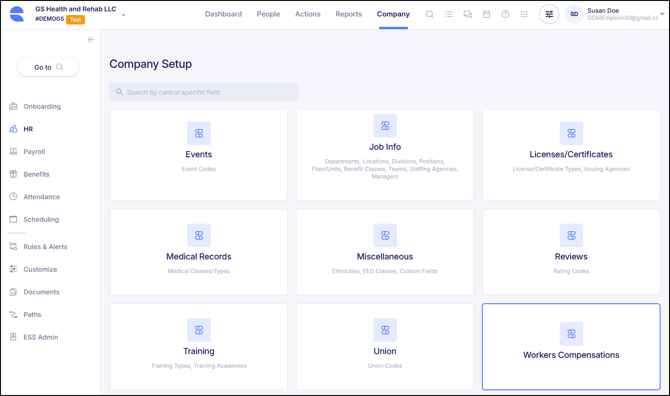
To view, set up or maintain Workers' Comp Codes, navigate to the Workers Compensation Card, located in the HR section of the Company tab.
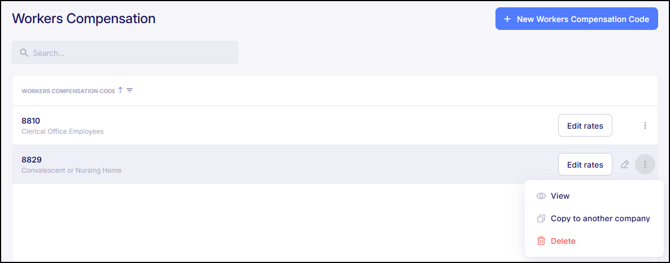
Within the Workers Comp Card, it will display any Workers' Comp Code that have already been set up. For each that has, there is a pencil icon that allows for the ability to Edit the code and a three-dot menu provides options to View, Copy to another company, and Delete it. Within the row of each code, there is also an "Edit rates" button that allows for the ability to add or edit rates associated with the Workers' Comp Code.
To add a new Workers' Comp Code, click the blue button in the top right corner that says "+ New Workers Compensation Code".
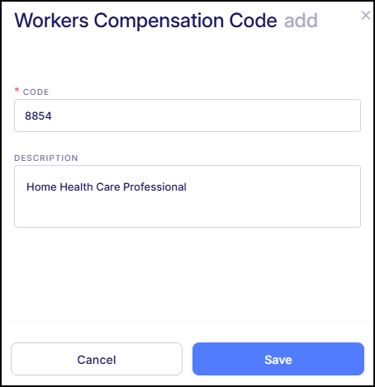
Adding a new Worker's Comp Code simply consists or adding a Code and Description and then clicking "Save".
Worker's Comp Code Rates
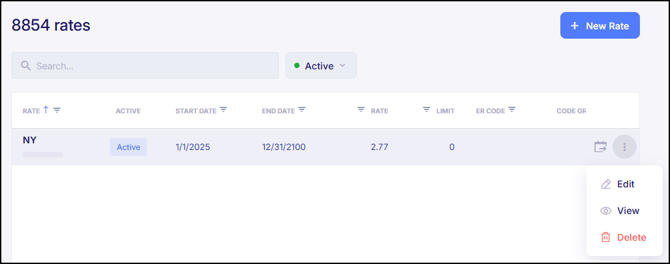
After adding a Workers' Comp Code, rates can be associated to it by selecting "Edit rates". A new screen will populate displaying all rates that have been set up and associated with the code. For each rate that has been set up, there will be a three-dot menu offering the options to Edit, View or Delete it.
To add a new rate, click on the blue "+ New Rate" button in the top right corner.
When adding a rate, review each field to understand its purpose and impact within the system.
- State - The state the rate applies to.
- Employer Rate - The workers’ compensation rate for the employer portion.
- Employer Memo Earning Code - Assigning a Workers’ Comp Memo Earning links the rate to a designated earning, allowing Empeon Workforce to automatically apply the employer portion in payroll when applicable.
- Employee Rate - For states that include an employee portion, this field defines the employee rate.
- Employee Deduction Code - Assigning a Workers’ Comp deduction links the rate to a designated deduction, allowing Empeon Workforce to automatically apply the employee portion in payroll when applicable.
- Code Group - Defines which earnings are included when calculating workers’ compensation for this rate.
- Limit - A flat annual limit that caps the amount subject to the workers’ compensation rate. The value entered should be a maximum dollar amount if Dollars is selected below, or a maximum hour amount if Hours is selected.
- Dollar/Hours - Specifies whether the workers’ compensation rate is calculated based on total wages (dollars) or total worked hours. This setting varies by state.
- Default If No SUI - Determines whether this rate should apply when an employee does not have a SUI tax code assigned.
- OT Subject - Determines whether worked overtime hours are subject to workers’ compensation exposure when calculating the rate. This is typically toggled on if the rate is based on hours.
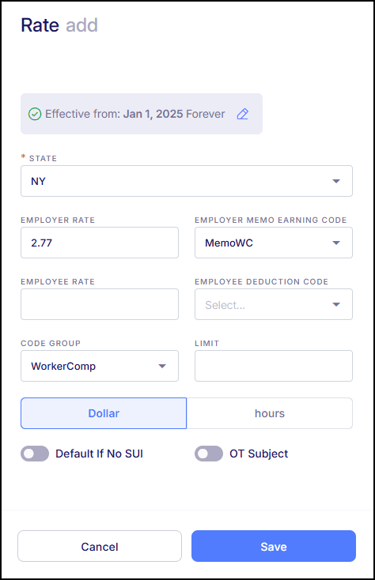
Please note that workers' compensation rates vary by state and insurance carriers. The rate seen in the screenshot is just an example.
Be sure to click "Save" after configuring the rate.
Link Workers' Comp Code to Appropriate Cost Center
After creating the Workers’ Comp Code and setting up its rates, the final step is to link it to the relevant Cost Center, which can represent either Positions or Departments, depending on the organization’s structure. For the appropriate Position or Department Cost Center code, the Workers' Comp Code needs to be linked in the WCC Field, like shown in the example below.
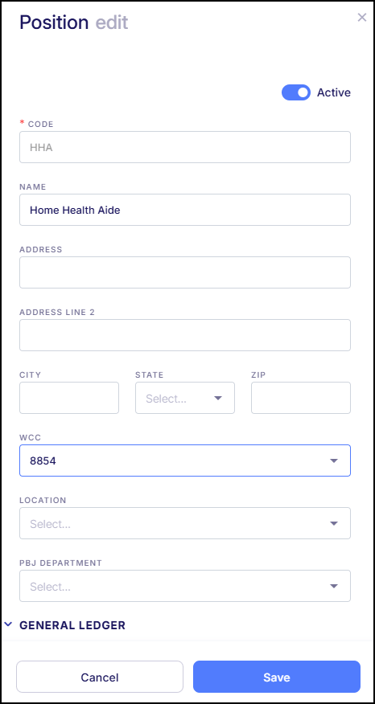
Once a Workers’ Comp Code is linked to the appropriate Cost Center, employees assigned to that Cost Center in a state with an associated rate will automatically have the Workers’ Comp memo earning, and any applicable deduction, applied in Pay Entry when they work hours included in the "WorkerComp" Code Group.