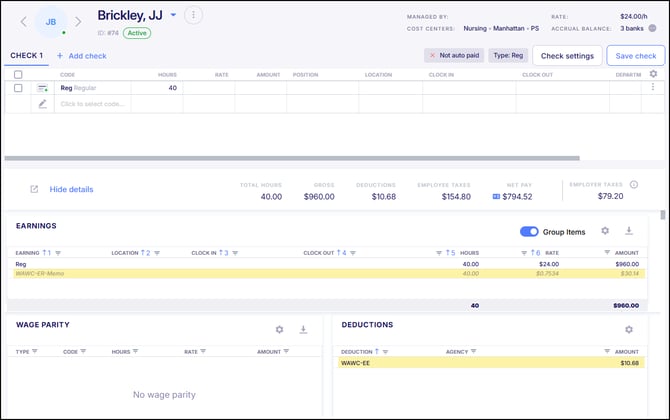
Washington administers Workers’ Compensation through the Washington State Department of Labor and Industries, with reporting and calculation requirements that differ from many other states. Contributions are determined using state-defined classifications and are calculated based on hours worked, rather than wages.
Because of these reporting and calculation requirements, specific configuration is required within Empeon Workforce to ensure Workers’ Compensation is processed accurately for Washington employees.
Follow the steps below to configure Empeon Workforce to handle Washington Workers’ Compensation appropriately.
Step 1. Add/Confirm Workers' Comp Memo Earning
A Workers' Compensation memo earning must be established to track employer-paid Workers' Compensation amounts for Washington. In many cases, this memo earning may already exist and be uniquely coded. If so, no additional setup is required for this step.
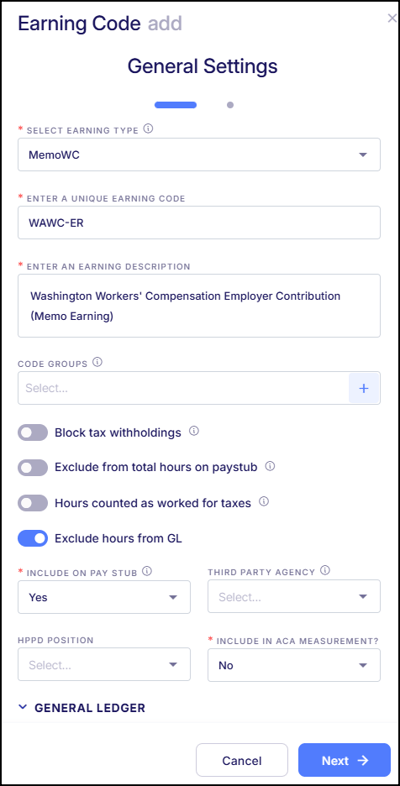
However, if preferred, a separate memo earning can be created specifically for Washington Workers' Compensation to clearly distinguish these amounts from other states or for internal tracking purposes. When creating a Washington-specific memo earning, ensure that the Earning Type is set to "MemoWC". The suggested code name for this is "WAWC-ER" and an example of the memo earning configuration is shown below:
Step 2. Add/Confirm Workers' Comp Deduction
Washington requires employee contributions toward Workers' Compensation, which must be collected through a payroll deduction. In many cases, a Workers’ Compensation deduction will need to be created given that Washington is the only state that requires employee contributions.
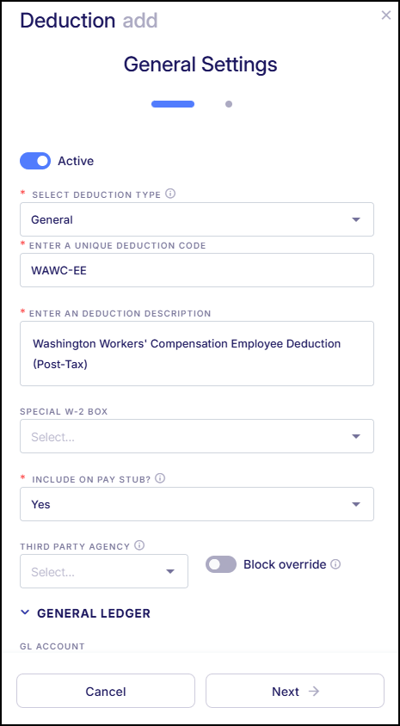
This deduction can be coded according to preference. If the deduction is set up as Washington-specific, a the suggested code name for this should be "WAWC-EE". The Deduction Type for this deduction must also be set to General (Post-Tax) and the Deduction Occurrence should be set to OncePerPay.
An example of the deduction configuration is shown below:
Step 3. Add Workers' Comp Code Group
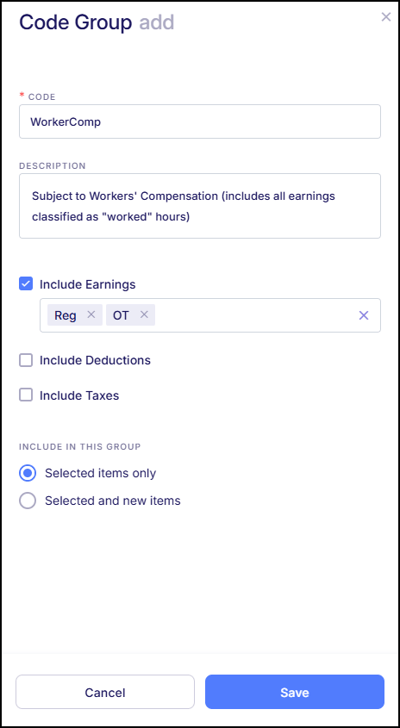
A Workers’ Compensation Code Group must be created to identify which earning codes are subject to Washington Workers’ Compensation calculations. In Washington, Workers’ Compensation is calculated based on hours worked, not wages. Because of this, the code group should include only earning codes that represent worked hours. Memo earnings, non-worked earnings like Sick, PTO, Holiday, and Severance, and duplicate earning codes such as shift differentials should not be included.
The code name for this Code Group must be set as "WorkerComp". A simple example is below:
Step 4. Add/Edit Workers' Comp Codes & Rates in Empeon Workforce
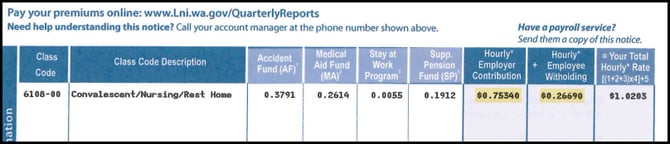
A Workers’ Comp Code must be added in Empeon Workforce to represent the classification for Washington Workers’ Compensation. After configuring the code, rates can then be applied. Rates linked to Workers' Comp Codes may require annual updating. Washington Workers’ Comp Codes can be obtained using the link provided here: https://secure.lni.wa.gov/verify.
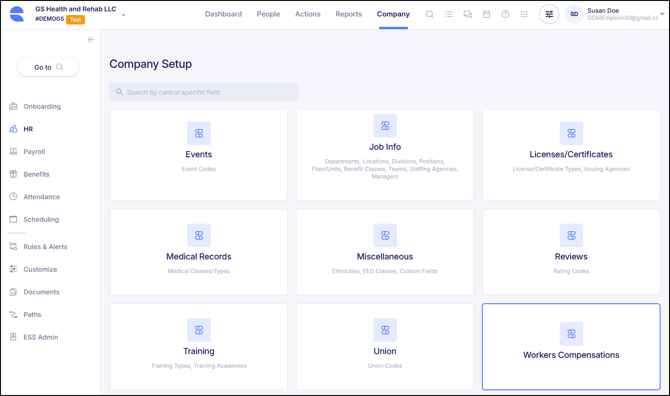
To add and maintain Workers' Comp Codes, navigate to the Workers Compensation Card, located within the HR section of the Company tab.
Within the Card, click the "+ New Workers Compensation Code" button in the top right corner of the screen to add a new code. This process simply consists of entering a Code and Description. Workers' Comp Codes with dashes should be coded without the dash. See the example below for details:
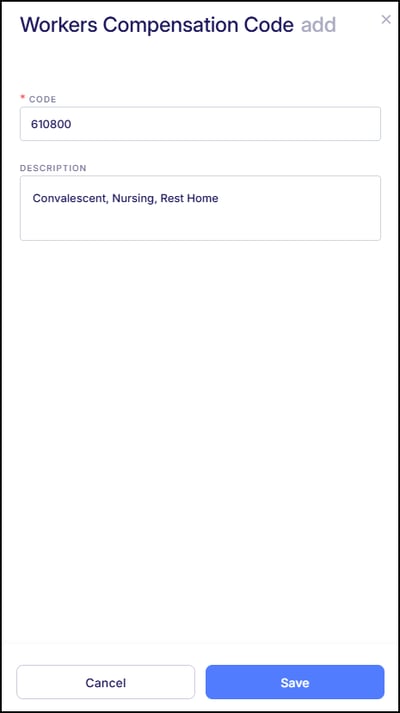
Click "Save" to finalize the code. After saving the Workers' Comp Code, click on "Edit rates" to begin configuring its associated rates.
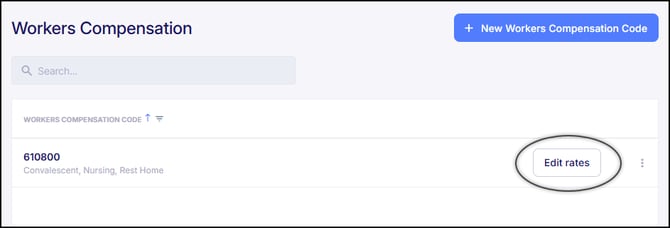
On the next screen where the rates are configured, click on "+ New Rate" in the top right corner. Please note the following fields when configuring the rate:
- State - Select Washington (WA). If WA is not available, contact Empeon Customer Support. The state selection is important because it determines the rates associated with the Workers’ Comp code and must match the state linked to the employee’s SUI tax code.
- Employer Rate - Enter the Hourly Employer Contribution
- Employer Memo Earning Code - Link the Workers' Comp Memo Earning from step 1
- Employee Rate - Enter the Hourly Employee Withholding
- Employee Deduction Code - Link the Workers' Comp Deduction from step 2
- Code Group - Link the "WorkerComp" Code Group from step 3
- Dollars/Hours - Make sure Hours is toggled.

Click "Save" to finalize the rates for the Workers' Comp Code.
Step 5. Link Workers' Comp Code to Appropriate Cost Center
After creating the Workers’ Comp Code and setting up its rates, the next step is to link it to the relevant Cost Center, which can represent either Positions or Departments, depending on the organization’s structure. For the appropriate Position or Department Cost Center code, the Workers' Comp Code needs to be linked in the WCC Field, like shown in the example below.
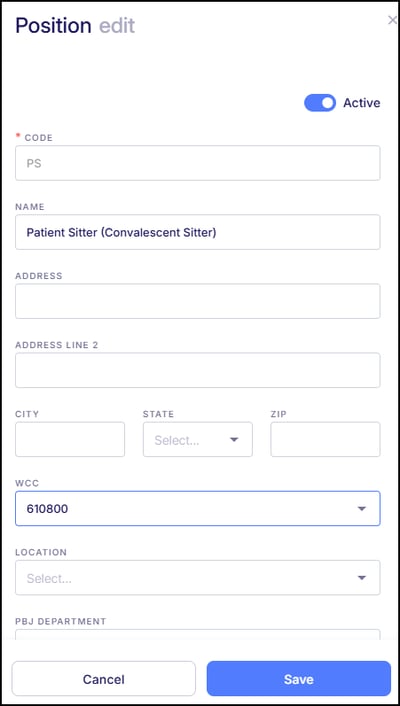
Once the Workers’ Comp Code is linked to the appropriate Cost Center code, all Washington employees assigned to that Cost Center will automatically have both the memo earning and deduction applied when they work hours included in the WorkerComp Code Group.