
What is Wage Parity?
Wage Parity is a compensation requirement that typically applies to employers of home care aides who provide services paid for by Medicaid-managed care plans or other state-funded home care programs. These services typically include personal care, home health aide services, and other in-home assistance provided to Medicaid recipients who qualify for long-term care.
The purpose of Wage Parity is to ensure that home care workers in locations where Wage Parity requirements apply receive a total compensation package that meets or exceeds state-mandated minimums.
Where Wage Parity Applies
Wage Parity laws currently apply to home care aides working in:
- New York City (all boroughs)
- Nassau and Suffolk Counties (Long Island)
- Westchester County
These are the only areas in New York State where Wage Parity requirements apply. Home care aides in all other areas of the state are covered only by the general minimum wage laws.
What Wage Parity Requires
For covered workers, Wage Parity requires employers to provide a total compensation package that includes a base hourly wage
and a supplemental benefits portion.
The supplemental benefits portion, also known as the Wage Parity Rate, can be satisfied in a variety of ways. Employers may meet the requirement by providing any combination of the following, as long as the total value meets or exceeds the required amount for the employee’s work location:
- Health insurance coverage
- Paid time-off (PTO)
- Retirement plan contributions
- A taxable cash equivalent, often provided as a “supplemental wage” if benefits are not offered
The required dollar amount for supplemental benefits is determined annually by the New York State Department of Health (DOH) and varies by region. This amount is in addition to the employee’s base hourly wage. For 2025, the minimum required amounts are:
| Region | Base Hourly Rate (Minimum Wage) | Supplemental Benefit Requirement (Wage Parity Rate) | Total |
| NYC (all boroughs) | $19.10 | $2.54 | $21.64 |
| Nassau, Suffolk, and Westchester | $19.10 | $1.67 | $20.77 |
| Rest of NYS | $18.10 | $0.00 | $18.10 |
Please note that the supplemental benefit rates shown reflect current published amounts for 2025. Rates may be updated annually by the New York State Department of Health (DOH).
How Wage Parity is Calculated
Wage Parity liability is calculated based on each pay rate worked. Since home care aides may earn different rates within the same shift, the system evaluates Wage Parity separately for each pay rate worked rather than by the overall shift or paired punch. Home care aides often earn different pay rates depending on factors such as the client, the level of care provided, the work location, or whether a shift differential applies. Because rates can vary across pay periods, Wage Parity is evaluated separately for each one.
For each pay rate worked, the system compares the employee’s total compensation, including base pay and any applicable premiums, to the required total compensation rate for the region. If the total compensation for that pay rate meets or exceeds the required amount, there is no additional Wage Parity liability. If it falls below the required total, the difference must be covered through supplemental benefits or another form of compensation.
Wage Parity Compliance
Employers subject to Wage Parity must maintain detailed payroll and benefits records that show how each covered worker’s total compensation meets the required Wage Parity standards. They must also submit annual compliance certifications to the New York State Department of Labor (DOL) and the Department of Health (DOH).
This includes both of the following forms:
- Form LS-300 – Employer Certification
- Form LS-301 – Independent Auditor Verification
These forms confirm that all applicable employees received the required wages and benefits for the reporting year. Employers that fail to comply may face:
- Financial penalties
- Withholding of Medicaid payments
- Disqualification from participating in Medicaid-funded programs
Wage Parity in Empeon Workforce
Empeon Workforce includes built-in configuration options to manage Wage Parity requirements. However, Wage Parity setups can vary widely between employers, as each organization’s requirements are often defined in coordination with their legal or compliance advisors. Because of this, Wage Parity configurations in Empeon are typically established and maintained by the Empeon team. For assistance with creating new Wage Parity plans or making significant changes to existing configurations, please contact Empeon Customer Support. This article is meant to help you understand how Wage Parity might be configured within your account.
Wage Parity typically needs the following items to be set up FIRST, before a Wage Parity calculation can be established. Here is what is needed:
- A Wage Parity Code Group that includes applicable earnings subject to Wage Parity.
- Cost Center and/or Job Codes setup
- If applicable a Memo Earning or an Accrual Policy for any remaining benefits linked to Wage Parity.
To view the Wage Parity Card within Empeon Workforce, navigate to the Payroll section of the Company tab.
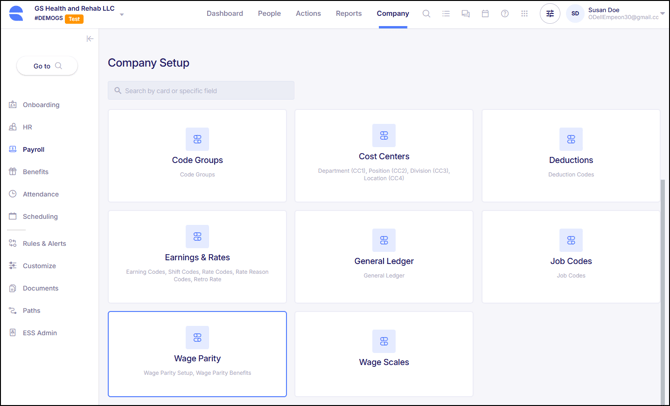
Within the Wage Parity Card, there are two sections: Wage Parity Setup and Wage Parity Benefits. The Wage Parity Setup section determines how the system calculates Wage Parity when it applies, while the Wage Parity Benefits section is used to configure the specific benefits that may contribute to meeting the required total compensation.
Wage Parity Setup
Within the Wage Parity Setup section, settings are organized into three main sections. Please see below for insights on each section and what is configured:
Subject Information
- Subject Code Group - The Wage Parity Code Group that includes applicable earnings subject to Wage Parity. Empeon typically creates this code group and names it "WPSubject". Only worked earning codes are counted toward Wage Parity, so this code group should include all worked earning codes that need to be considered in the calculation.
- Subject Field - The Cost Center or Job Code linked to the Wage Parity calculation.
- Select Cost Center/ Job Code- All Cost Center or Job Codes that should be linked to the Wage Parity calculation.
- Custom Payroll Filter - This setting allows for more granular control over Wage Parity calculations by applying the calculation only to specific groups of employees. For example, a custom payroll filter could be used to include only non-union employees in a scenario where union employees may already have Wage Parity handled through their union agreements.
- Ignore If No Liability - This setting tells the system to skip calculating Wage Parity for records where there is no remaining liability. In other words, if the employee’s total compensation already meets or exceeds the required Wage Parity amount for a specific visit, shift, or pay segment, the system will not perform any further calculation or create an entry. This can help reduce unnecessary processing and reporting for cases where no Wage Parity is owed.
- Ignore if Liability Covered - This setting instructs the system to skip applying Wage Parity calculations for records where the liability has already been satisfied. For example, if a previous payment, memo, or accrual has already covered the Wage Parity obligation for a specific employee, the system will not apply additional calculations or duplicate entries. This ensures that previously covered liability is not double-counted.
Location Information
- Location Field - The Cost Center for Location linked to the Wage Parity calculation. Each Cost Center Location Code includes a Location Field where the appropriate Wage Parity location is linked.
- Default Location - The Location entered here will apply by default when there are employee records with no Location All Cost Center Locations Codes that should be linked to the Wage Parity calculation.
Remaining Benefit Setup
The Remaining Benefit Setup determines how any leftover Wage Parity liability is handled after base wages and supplemental benefits have been applied. These remaining amounts can be applied to a variety of supplemental benefits, including:
- Health insurance premium contributions
- Retirement plan contributions
- Dental or vision premium contributions
- Flexible spending accounts or other "flex funds" for qualifying expenses
- Other benefits administered by a third-party administrator (TPA)
Ultimately, this section determines which benefits will be applied, and the timeline in which the employee will receive them. Remaining amounts can be applied immediately through a memo earning, which tracks the liability for reporting purposes and applies the benefit as it occurs. Alternatively, they can be applied as an accrual, held as a dollar balance within payroll to be paid out or applied at a later time.
The following settings define how the Remaining Benefit Setup is configured in the system and determine where leftover Wage Parity liability will be recorded.
- Code Type - Defines whether the remaining liability is handled as a Memo Earning or as an Accrual.
- Memo Earning - Records the remaining amount on payroll for tracking and reporting purposes without paying the employee.
- Accrual - Holds the remaining liability as a dollar balance within Empeon Workforce to be applied or paid out at a later time.
- Code - The applicable memo earning code when the Code Type is set to Memo Earning, or the applicable accrual policy when Accrual is selected.
- Allow Negative – This setting controls whether the system allows the remaining Wage Parity liability to go below zero. When enabled, it permits over-application of benefits or accruals, which can result in a negative balance. When disabled, the system prevents any action that would reduce the remaining liability below zero, ensuring the recorded amount never exceeds what is actually owed.
Wage Parity Benefits
The Wage Parity Benefits section is where specific supplemental benefits are registered so the system knows how Wage Parity dollars should be applied. While the Wage Parity Setup section determines how to calculate liability and where it applies, the Wage Parity Benefits section defines what benefit each Wage Parity dollar should go to.
The Wage Parity Benefits section supports multiple ways of applying Wage Parity dollars, depending on how an employer satisfies Wage Parity requirements. Please see below for how this section is configured:
- Benefit Type - Defines how Wage Parity amounts are applied once liability exists. This setting has two available options, Offset and Benefit, which determine whether Wage Parity dollars are used to reduce existing compensation components or applied as a specific supplemental benefit.
- Offset - Wage Parity dollars are used to offset existing earnings, deductions, or benefits that already contribute toward meeting the required total compensation. This option is commonly used when certain wages or benefits should reduce the remaining Wage Parity liability rather than create a new benefit.
- Benefit - Wage Parity dollars are applied as a specific supplemental benefit. This is typically used when Wage Parity amounts are intended to be directed toward benefits such as health insurance contributions, flex benefits, or other qualifying programs.
- Code Type - Determines the type of payroll code or policy used to apply or record the Wage Parity amount. Available options vary based on the selected Benefit Type:
- Offset - Allows Wage Parity amounts to be applied using a Memo Earning, Accrual, Earning, or Deduction.
- Benefit - Allows Wage Parity amounts to be applied using a Memo Earning or Accrual.
- Code - Associates the applicable payroll code based on what is selected as the Code Type.
Additional Settings by Benefit Type
The remaining settings in the Wage Parity Benefits section vary based on the selected Benefit Type. Once Offset or Benefit is selected, the system displays only the settings relevant to that configuration.
When Offset is selected the following settings define how Wage Parity dollars are used to offset existing payroll records:
- Offset Filter - Determines how Wage Parity offsets are applied. Available options include:
- All - Applies the offset across all applicable Wage Parity records.
- WP Case - Applies the offset at the Wage Parity case level.
- WP Hour - Applies the offset at the individual Wage Parity hour level.
- Custom Payroll Filter - Allows Wage Parity offsets to apply only to specific groups of employees. This setting functions the same way as the Custom Payroll Filter described earlier in this article and is commonly used when certain populations (such as union employees) should be excluded from the Wage Parity calculation.
When Benefit is selected the following settings define how Wage Parity dollars are applied as a supplemental benefit:
- Rate - Defines the amount of Wage Parity dollars to be applied for the configured benefit.
- Per Check - When enabled, the configured rate is applied once per payroll check. When disabled, the rate is applied per hour subject to Wage Parity.
- Location Filter - Determines whether the benefit rate applies uniformly across all locations or varies by location. This field is empty if the same rate should apply to all locations.
- Custom Payroll Filter - Allows the benefit to apply only to specific groups of employees. This setting functions the same way as the Custom Payroll Filter described earlier in this article.
Wage Parity Informational Video
For more information on Wage Parity, see our on-demand video here.