
One of the most common General Ledger questions we receive is when clients see amounts posting to their suspense account and aren’t sure why. A suspense balance means the system didn’t know which GL account to use for one or more payroll transactions.
The good news? This is usually quick and easy to troubleshoot once you know where to look!
What Causes Amounts to Go to Suspense?
Amounts typically post to suspense when:
- A new earning or deduction was added but not assigned a GL account
- A new cost center was created and isn’t included in the GL rules
-
A change was made to payroll setup without updating the GL configuration
When this happens, the system temporarily places the transaction in suspense until it’s mapped correctly.
Step 1: Run the Live Labor Distribution Report
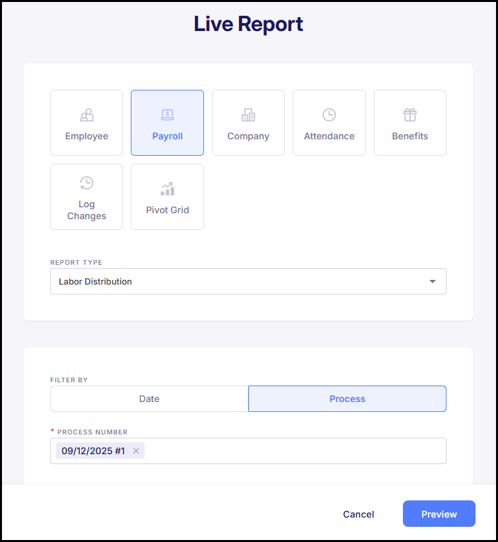
The fastest way to identify the issue is to run a Labor Distribution report, which shows payroll costs by department, cost center, or other labor segments across the specified date range (in this example based on a specific payroll process).
Go to Reports > + Live Report > Payroll > Labor Distribution and filter by the payroll process with suspense amounts.
Step 2: Add GL Fields to the Report
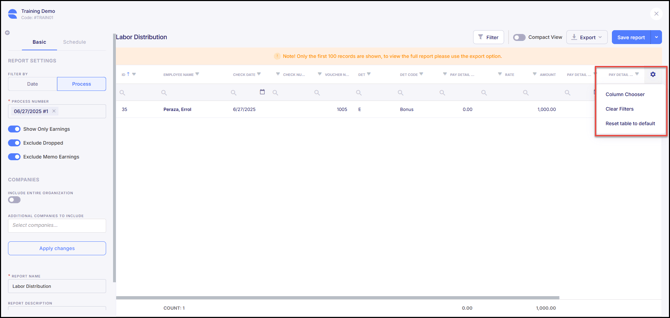
Once the report opens, use the Column Chooser to add the GL-related fields.
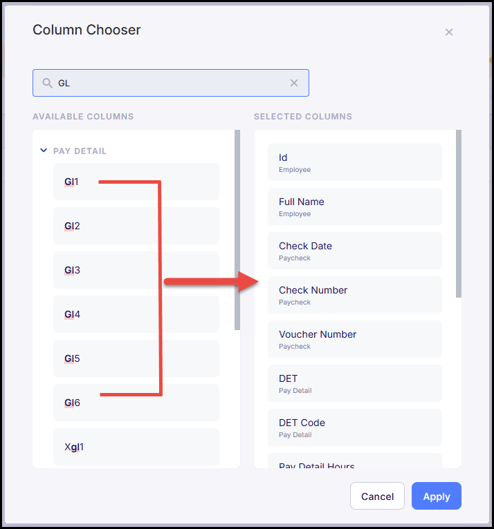
Use the search function to find the GL-related fields and drag them to the "Selected Columns" to add them to the report.
Step 3: Filter for Blank GL Fields
After adding the GL fields:
- Apply a filter to show blank GL fields
- Compare those results to the amounts showing in your suspense account

In most cases, the transactions with missing GL values will match the suspense amounts exactly.
Step 4: Review and Correct the GL Configuration
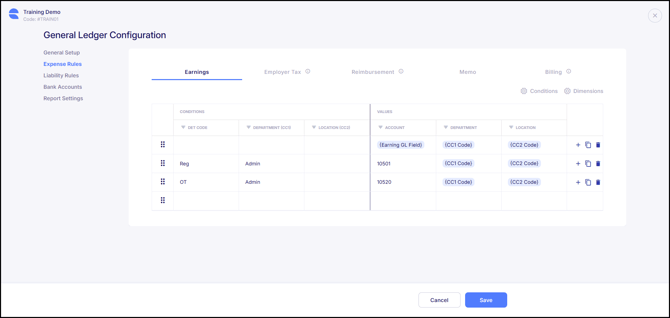
After identifying the transactions posting to suspense, review the General Ledger configuration (Company > Payroll > General Ledger > GL Configuration) to determine what is driving the GL account assignment.
- Review Expense Rules or Liability Rules – Identify which rule applies to the transaction.
-
- Confirm what field the rule is using to populate the GL account (earning, deduction, or cost center).
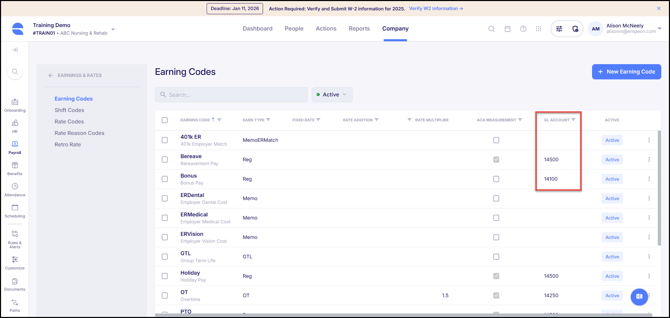
- If the rule is driven by an earning or deduction GL field:
- Navigate to the earning or deduction setup.
-
- Add or correct the GL account value for the affected code.
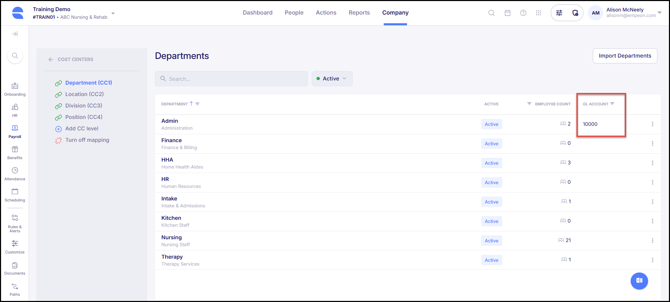
- If the rule is driven by cost centers:
- Review the cost center setup used in payroll.
-
- Assign the appropriate GL value to the missing or newly created cost center.
- If the earning, deduction, or cost center was newly created:
- Confirm it is included in the applicable Expense Rules or Liability Rules.
- Update the rule as needed so future payrolls are mapped correctly.
Following this process ensures the transaction is assigned to the correct GL account and prevents future payrolls from posting to the suspense account.
Step 5: Recalculate the General Ledger
After making corrections:
- Return to General Ledger Configuration
- Use the Calculate function
- Select the affected payroll period(s)
- Re-run the GL Report
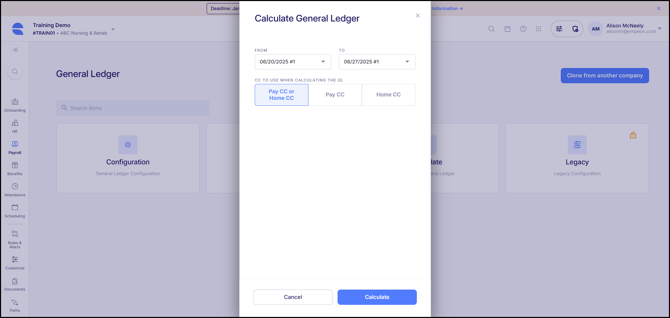
This updates the GL so the amounts move out of suspense and into the correct accounts.
Key Takeaway
If you see amounts in suspense, it doesn’t mean payroll is wrong; it usually just means something new wasn’t mapped yet. Running the Labor Distribution report and filtering for blank GL fields is the quickest way to pinpoint the issue and resolve it.
If you’re unsure which GL account to use or need help updating your configuration, Empeon Customer Support is always happy to assist.