
What are Time Card Retroactive Adjustments?
Time Card Retroactive Adjustments are used whenever punches on a closed time card need to be added, removed, or re-allocated. These adjustments can correct payroll records for accurate reporting or ensure employees are compensated for missed or incorrect hours. Empeon Workforce provides tools to make these updates efficiently, offering two methods for adjusting closed time cards, each tailored to specific scenarios where time punches must be modified.
Please note that Company Admins and above have access to this feature within the time card. For Users assigned to Custom Roles that should have the ability to do this, the "Adjust closed timecard" Role permission must be enabled.
Adjusting Time Cards
To make an adjustment to a closed time card for an employee, navigate to their Employee Profile and select "Time card". Then, use the dropdown next to the time card's pay period to select the "History" tab, where all processed pay periods are listed. From there, choose the specific pay period that requires adjusting.
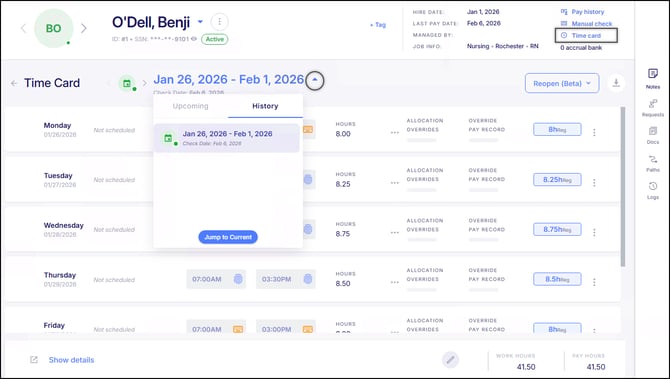
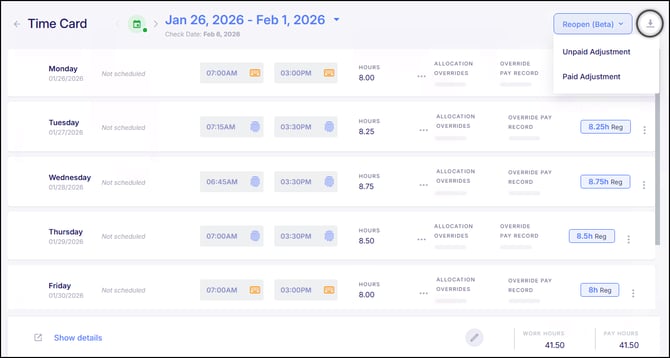
Upon selecting the appropriate pay period, the time card will appear greyed out since it has already been processed. Before making a time card adjustment, it is recommended to download the time card using the "Export" button in the top right corner of the time card. This is in the event where any changes made need to be reverted back to its original records. Then after downloading the time card, click the "Reopen" button to initiate the time card adjustment. Selecting this option prompts the user to choose either Unpaid Adjustment or Paid Adjustment.
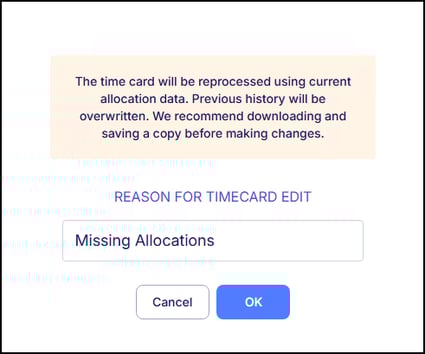
Upon reopening, the system requires a reason for the edit and issues a warning that proceeding will apply the new changes and previous records will be overwritten.
After making the necessary changes to the time card, click "Save Time Card".
Within "Show details" all edits are tracked in a new Adjustments tab, labeled either Ready to send to payroll or Excluded from payroll depending on the selection made during reopening. Clicking on the tag reveals the reason that was provided when reopening the time cards. Once adjustments are sent to payroll, they will then be labeled Sent to Payroll.
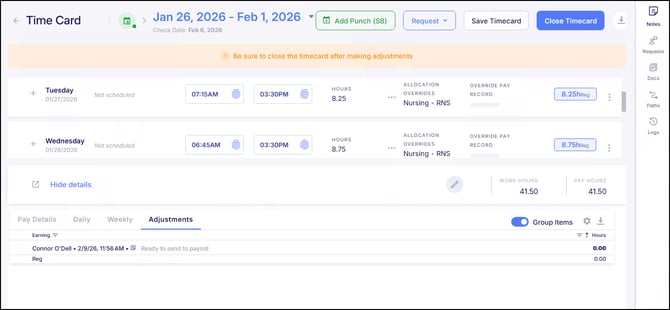
To finalize changes and make them eligible for payroll submission, click "Close Timecard". Changes made that were excluded from payroll will save automatically. If the changes made are to be sent to payroll, they will be posted within the "Timecard Adjustments" section of the next scheduled payroll batch. Once closed, the time card becomes read-only, and a new Reopen button will appear.
Processing Adjustments in Payroll
For Paid Adjustments, they will be posted within the Timecard Adjustments tab of the next schedule payroll batch. It is here where Users can review each time card adjustment posted here and determine the next course of action.
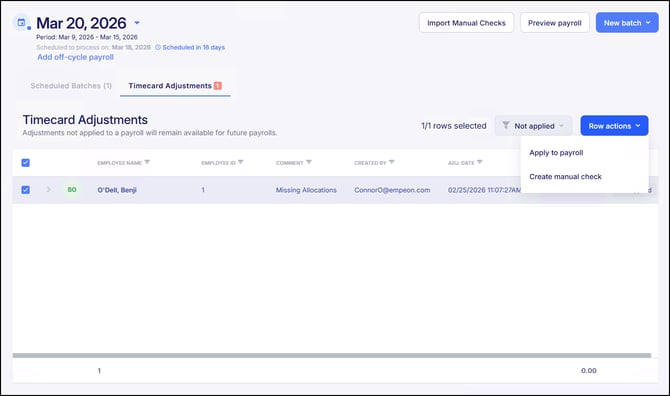
There are three ways time card adjustments can be handled:
- Apply to payroll - Apply the adjustment toward the next scheduled batch.
- Create manual check - Apply the adjustment toward a manual check.
- Leave the adjustment unapplied - Since time card adjustments can include negative amounts, it is important to ensure that the affected employee will still have a positive net check to offset any negative adjustments that might be applied. If the negative adjustments would result in a zero or negative check, it is recommended to not select the adjustment and instead leave it to be applied toward the next payroll when the employee is being paid.
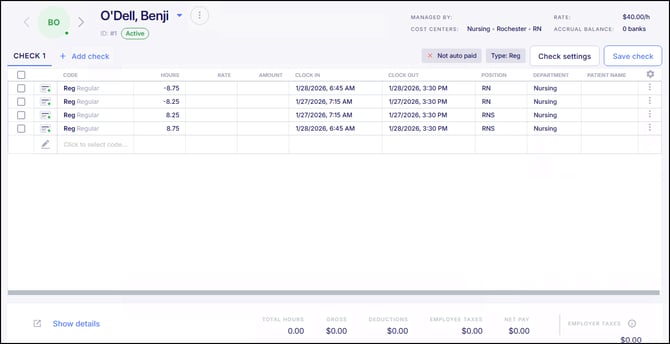
Any adjustments not applied before the payroll batch is closed will automatically carry forward to the next payroll cycle. If adjustments are available but have not been applied, the system will display a warning message when verifying and closing the batch, giving the opportunity to return to the Timecard Adjustment tab and decide whether to include them before finalizing the payroll.