
For salaried employees, there are two different ways to configure their Pay Info Card to ensure that they are paid correctly. The appropriate setup depends on whether the employee uses Attendance to track time or is paid a fixed salary without a timecard.
Salaried employees who do not use Attendance can be set up directly as Salary, whereas salaried employees who use Attendance must be set up as Hourly with an "SFT" Employment Type. This article outlines the pay setup for both scenarios, as an incorrect configuration can result in duplicate pay or inaccurate payroll calculations.
Salary Employees Without Time Tracking
Use this setup for salaried employees who do not use Attendance and are paid a fixed amount each pay period.
Pay Info Card Setup
Configure the following:
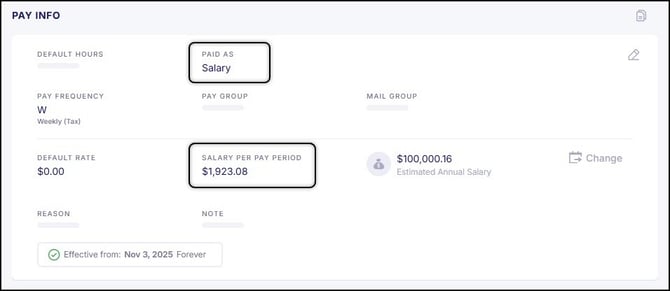
- Set "Paid As" field to Salary
- Enter the "Salary Per Pay Period"– To calculate this amount, divide the employee’s annual salary by the number of pay periods in the year
Clock Settings Card Setup
If the organization is enrolled in Empeon’s Time and Attendance feature, configure the following setting within the employee’s Clock Settings Card:
- Ensure "Exclude from Attendance" is toggled on
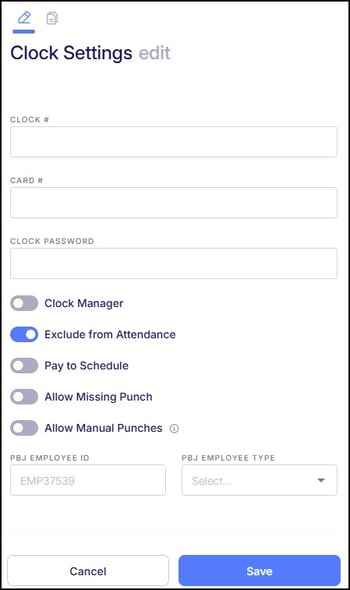
Enabling this setting prevents the employee from recording punches. This step is only required for organizations enrolled in Empeon’s Time and Attendance feature. If the organization is not enrolled, this step can be disregarded.
Salary Employees With Time Tracking
Use this setup for salaried employees who require time tracking or system-generated hours. Although the employee is salaried, they must be configured as "Hourly" to ensure proper payroll calculations.
Employment Status Card Setup
Configure the following:
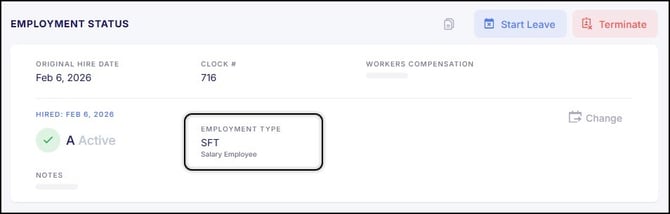
- Set "Employment Type" to SFT – This Employment Type is configured to automatically apply 8 hours per day, Monday through Friday, to the employee’s timecard, regardless of whether punches are recorded or not.
Pay Info Card Setup
Configure the following:
- Set "Paid As" field to Hourly
- Enter the "Default Rate" – To calculate this amount, divide the employee’s annual salary by 2,080 hours (based on a standard 40-hour work week)
- Ensure that "Auto Pay Hours" is set to No – Do not enable Auto Pay, as the SFT Employment Type already generates hours, and enabling both will result in duplicate pay
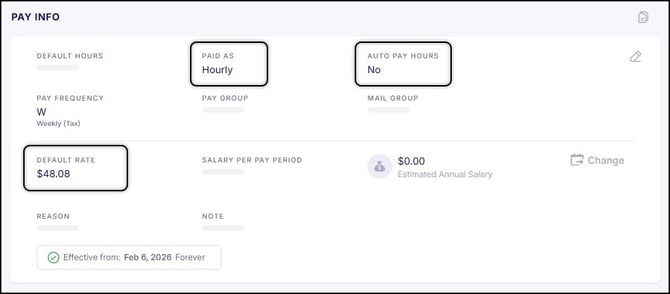
A "Salary Per Pay Period" can be entered for reference if desired; however, because the "Paid As" field is set to Hourly, the system will calculate pay using the Default Rate, not the salary amount.