Primary Features
The primary features of the ESS Hub are available to employees regardless of the Empeon package their employer is enrolled in. Simply put, if Empeon is being used for payroll processing, these are the core features that will be available within the ESS Hub by default and cannot be removed.
These features include the Employee Profile, ESS Inbox, Paystubs, Licenses & Certs and Docs.
However, the ESS Hub is highly customizable, particularly for employers enrolled in Empeon's HR Premium feature or modules like Time and Attendance and Advanced Scheduling. For more information on the additional features that can be made available, please refer to Empeon's article ESS Hub - Additional Features.
Home Dashboard
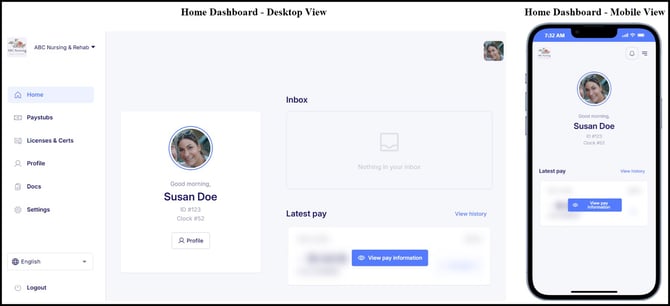
Once signed in, the first screen that will appear is the Home Dashboard. The home dashboard provides employees with a central hub of employee-related information with quick links to other sections within the self-service portal.
ESS Inbox
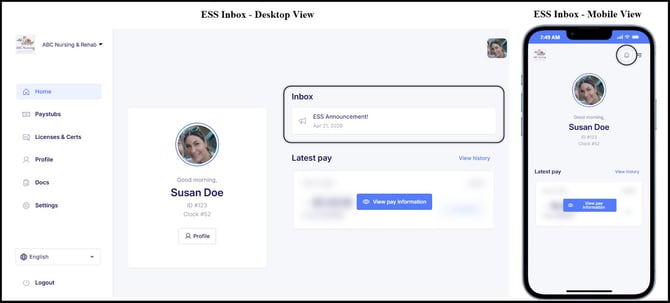
Exclusively located on the Home Dashboard, the ESS Inbox is where employers can share important information and documentation with their employees.
Within the desktop view, there is a section available on the Home Dashboard to access the ESS Inbox. For employees using a mobile device, the ESS Inbox can be accessed by tapping the bell button in the top right corner of the screen. Any time a new item is sent to the Inbox, this button will show a red notification indicator so that employees know there are new items to review.
Employee Profile
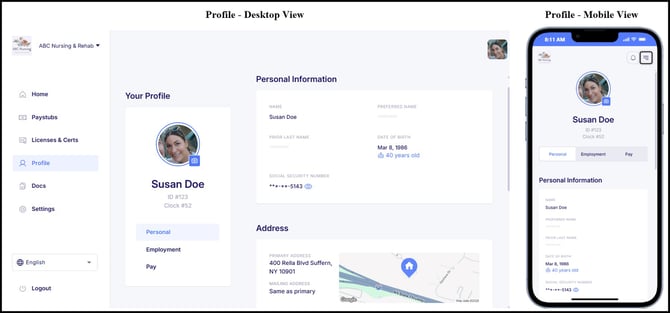
The Employee Profile is where employees can view their employment information and upload a profile picture to Empeon. The Employee Profile provides access to view their contact, address, employment, tax withholding, and direct deposit details.
Employees may have the option to edit some or all of these items, depending on the employer’s discretion. However, the ability to edit this information is considered an Additional Feature and must be enabled by the employer.
In the desktop view, there is a Profile section located on the left-hand menu. There is also a "Profile" button on the Home Dashboard, directly under the employee's name and picture. For mobile device users, the Profile can be accessed by selecting the Profile tab on the left-hand menu, which can be revealed by clicking the menu button in the top right corner of the screen.
Docs
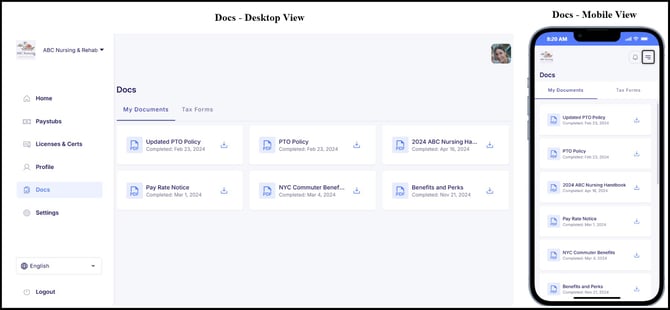
The Docs section within the ESS Hub provides access to documents shared by the employer. All shared documents are stored here and can be downloaded as PDF files. Documents included within a Path are initially viewed and completed in the ESS Inbox and are then stored in this section after completion. Employees can also access their year-end W-2 and 1095 tax forms within the Tax Forms tab, if they are enrolled to receive them electronically.
Licenses & Certs
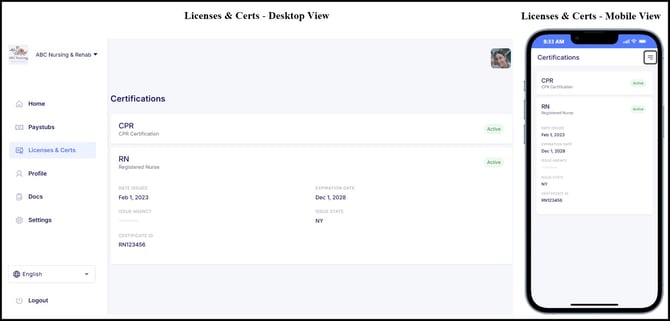
The Licenses & Certs section of the ESS Hub displays all licenses and certifications associated with the employee’s profile, including both active and expired records. If supporting documents have been attached to any of these records, employees can view and download them directly from this section.
Paystubs
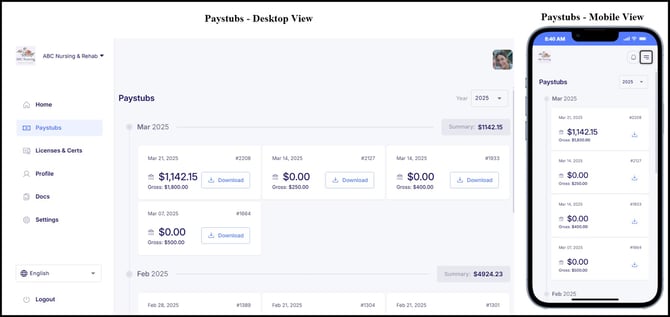
The Paystubs section of the ESS Hub allows employees to view their pay stub history by check date. This section shows both gross and net amounts for each paycheck received and provides an option to download the pay stub as a PDF.
Please note that on some touchscreen devices, tapping the gross summary card may be necessary for the "Download" link to appear.
In both desktop and mobile views, the Home Dashboard includes a Latest Pay section. This section remains hidden until the blue button labeled "View pay information" is clicked, which will display the most recent pay stub and offer a PDF download option. The "View history" button provides a quick link to the Paystubs section for accessing the full pay stub history.