
The Approved To Work section of the Employee Profile identifies additional Job Info designations where an employee may be eligible to work outside of their primary Job Info assignments. For example, if within Job Info, an employee is assigned to a primary Location, but may occasionally work at another Location within the organization, that additional Location can be listed in the Approved To Work section of their profile.
An employee’s primary Department, Position, Location, Division, and/or Floor/Unit are defined within the Job Info section of their profile, whereas any additional designations within these same categories where the employee may also be authorized to work are defined in the Approved To Work section. This section of the profile is primarily informational, serving as a reference for all approved work assignments associated with the employee.
To view and maintain the Approved To Work section for an employee, navigate to the Approved To Work section within their profile: People tab (Select Employee) > HR > Employment > Approved To Work.
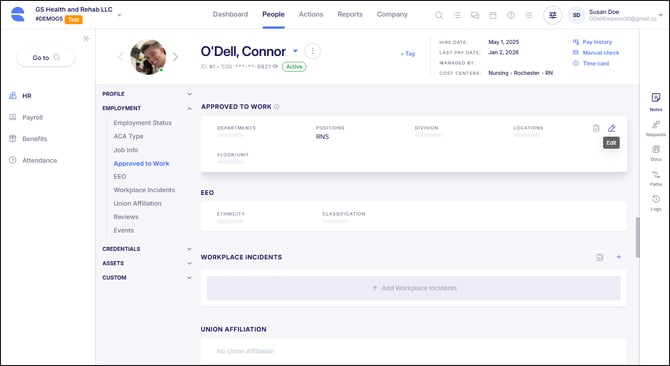
To manage this card, hover over it and click on the Edit button.
To add an assignment, select the applicable code from the dropdown field within the corresponding category. Multiple assignments can be added within each category as needed. Each selected code represents an approved work classification where the employee can work, beyond their primary Job Info assignments.
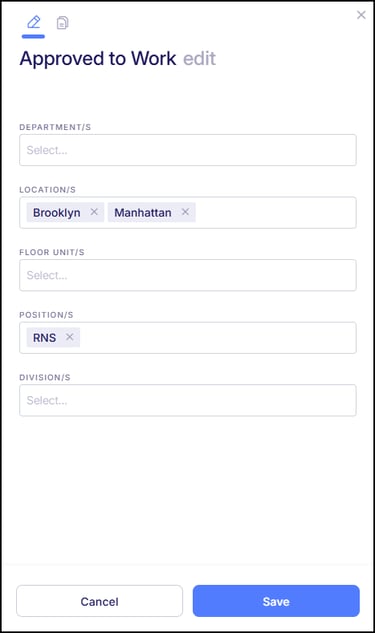
Be sure to click the Save button once all appropriate assignments have been added.
While Approved To Work assignments are predominantly used for informational purposes, there are other areas within Empeon Workforce where Approved To Work assignments can have an impact.
- Posting a Shift in Advanced Schedules – When posting a Shift linked to a Schedule Role, there is an option for "Include Approved To Work Employees" to allow employees who have the position assigned within Approved To Work to be eligible to request the Shift.
- Time Clock Web Punching – Empeon can configure Web Clock settings to only present Approved To Work assignments as selectable options when an employee punches through the ESS Hub and performs a punch allocation or transfer.
- Employee Approved To Work Live Report – There is a Live Report for Employee Approved To Work that lists all Approved To Work assignments for each employee who has them registered on their profile.