
New Enhancements to Schedule Lockout Feature
Enhancements have been made to the Schedule Lockout Feature to help prevent employees from clocking in too early or staying late outside of their scheduled shifts. When enabled, physical time clocks validate an employee’s assigned schedule and restrict punches to the defined schedule window.
Early Punch and Late Punch Margin settings can be set up in conjunction with this setting to define a margin for how early or late an employee is permitted to punch outside of their scheduled start and end times. These margins are defined at the company level within the Attendance Settings Card when the Use Schedule Lockout Rule toggle is turned on. If none are set up, the Schedule Lockout Rule will be strict to an employee's scheduled start and end times.
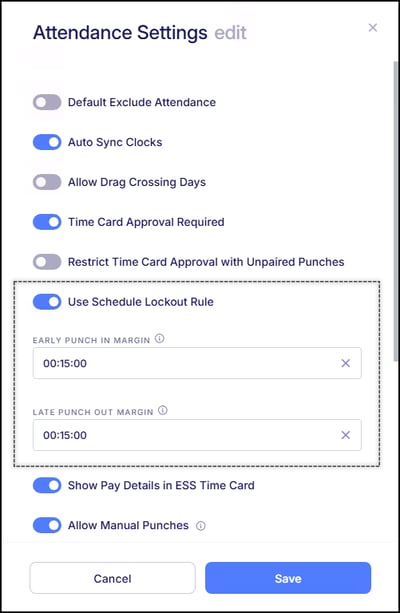
Margins are entered in HH:MM:SS format (Hours:Minutes:Seconds).
Example: 00:15:00 = 15 minutes
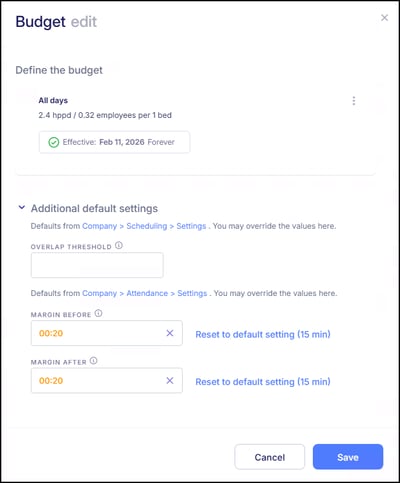
If specific Budgets should have different margin rules than what is established on the company level, there are designated fields within the Additional default settings of the budget that can override the company level margins. Margins entered here are in HH:MM (Hours:Minutes) format.
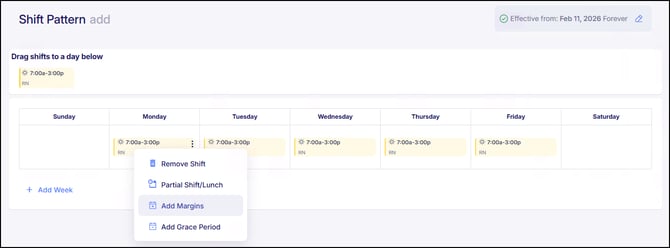
If individual employees should have different margin rules, individual overrides can also be established for each shift assigned within their Shift Schedule Pattern. Margins entered here are in HH:MM (Hours:Minutes) format.
By enforcing punch validation directly at the clock, this feature helps ensure employees are working within their assigned schedules and supports more accurate budgeting and labor management.
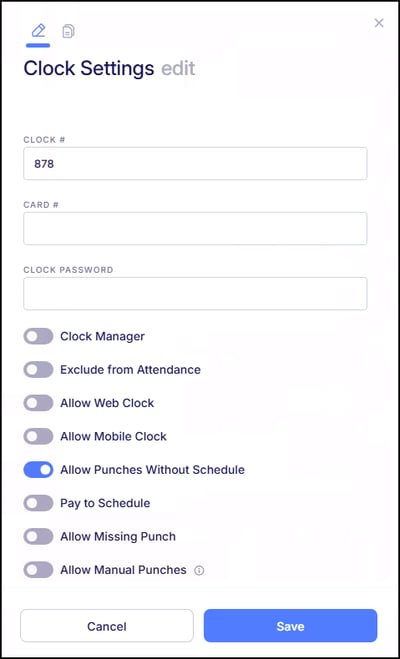
When this feature it enabled, it will apply to punches made through a time clock as well as both mobile and desktop punches as well. Since when this feature is turned on, it will reference an assigned schedule, there is now an employee profile setting located within the Clock Settings Card for Allow Punches Without Schedule. This setting should be turned on for employees who may still need to punch for time tracking purposes but are not assigned a schedule within the system.
Updates to Time Card Adjustments
Reopen Time Card Options Renamed
The options available when reopening a closed, already processed time card have been renamed to make the process clearer and more intuitive. Previously, the two available options when reopening a timecard were:
-
Exclude from Payroll
-
Send Changes to Payroll
These options have now been renamed to:
-
Unpaid Adjustment
-
Paid Adjustment
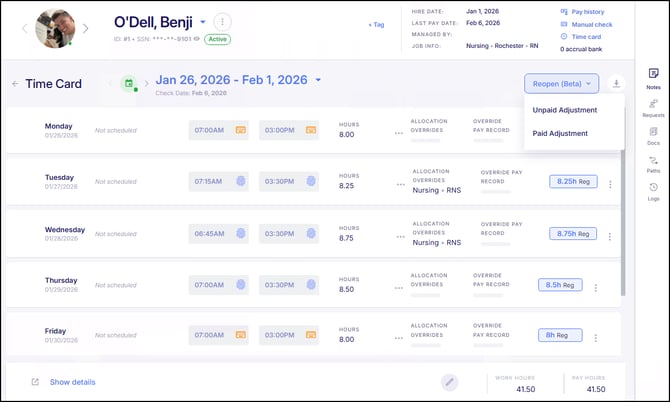
This update is strictly a terminology enhancement. The new labels more clearly reflect whether the adjustment will result in a paid or unpaid change, making it easier to confidently select the correct action when correcting a closed time card.
New Manual Check Option for Adjusted Time Cards
Now, when making a time card adjustment marked as a Paid Adjustment, administrators have the option to create a manual check for the changes, allowing the impacted employee to be paid sooner than the next scheduled payroll batch.
Previously, adjustments to closed time cards could only be applied to an upcoming scheduled payroll batch. If a manual check was needed, it required additional steps outside of the adjustment workflow. With this enhancement, time card adjustments are now managed in a dedicated Timecard Adjustments tab, separate from the scheduled payroll batches.
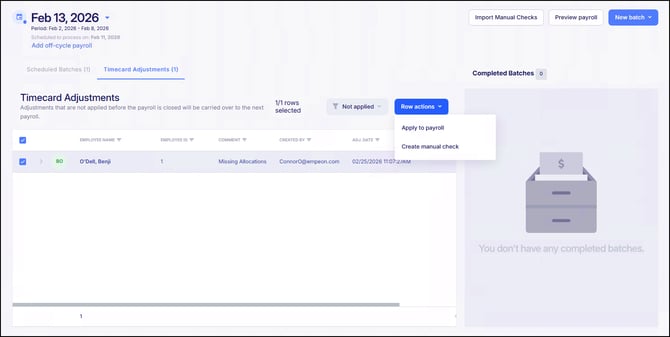
From this centralized view, users can review and manage time card adjustments and choose to:
- Apply the adjustment to the payroll batch
- Create a manual check for the adjustment
- Leave the adjustment unapplied (if the employee impacted might have a negative check as a result of the adjustment)
This update makes time card adjustments much easier to manage and provides greater flexibility in how corrections are handled by removing extra steps when immediate payment is required.
Web Clock Displays Only Approved Job Allocations
Now when attempting to punch using the ESS Hub, punch allocations and transfer allocations can be set up to only display options that have been set up within the Approved To Work section of the employee's profile. Previously, employees may have seen allocation options outside of their approved assignments when punching or transferring time.
With this update, dropdown options during this process can be set up to strictly show only the Departments, Positions, Divisions, Locations, and/or Floor/Units the employee is approved to work. This ensures employees can only clock into roles they are authorized to work, helping maintain accurate labor allocation and reducing unintended cost center selections.
To enable this setting within the web clock, contact Empeon today!
Bug Fixes
- ESS Announcement Acknowledgements "Close" Button Not Responding – There were reported cases where, after viewing ESS Announcement Acknowledgements, the Close button would not exit the window. Users were still able to exit the screen using the “X” in the top right corner. This issue has now been fixed
- Overnight Punches Splitting Within Grace Window – There were reported instances where overnight punches were being split at the configured Split Day Threshold time, even when the clock-out occurred within the defined Shift Grace Window. In these instances, the system divided the punch at the threshold instead of keeping the full shift on the original workday. This issue has now been fixed.
- Call-Out Approval Page Error for Multi-Shift Budgets – The Call-Out Approval page did not load as expected after a Budget was updated from single-shift to multi-shift. This occurred because existing call-out requests did not have an associated shift reference once multiple shifts were linked to the budget. Safeguards have been added to prevent page errors, existing records are now automatically updated when budgets change, and additional validation prevents shifts from being removed if they are still in use. This issue has now been fixed.
- Multi-Shift Budgets Displaying Incorrect Headcount in Employee View – There were few instances where, in the Employee View of the schedule, budgets linked to multiple shifts displayed an inflated headcount total. In these instances, the system showed the headcount multiplied across each shift rather than the shared across each shift. This issue has now been fixed.
- Expense Reimbursement Request Details Not Displaying – There were some reported cases where Expense Reimbursement Requests were visible within the Requests dashboard, but selecting the details icon did not display the request information on screen. This issue has now been fixed.
- Federal Withholding Allowances Removed from Paystub Display – There were some reported cases where paystubs displayed a federal withholding allowance value (such as “0”) for employees using the 2020 W-4 dependent credit setup. Although calculations were processing correctly, the display reflected prior exemption formatting, which could cause confusion. The paystub has been updated to remove the federal withholding allowances and dependent credit display entirely, leaving only the employee’s marital status shown. This issue has now been fixed.
- Cleared Trust Checks Unable to Be Voided for YTD Purposes – There were some reported cases of users attempting to void or void & reissue cleared trust checks for W-2/YTD purposes were unable to complete the action. Although the system allowed users to proceed through the steps, an error appeared on the final confirmation step stating that the check had already been cleared, preventing the void from completing. This issue has now been fixed.
- Error When Exporting Mapped Departments to Clock – There were some reported cases where an error occurred when exporting departments to a clock if the department was mapped. This was related to how clock values were mapped to cost centers within the system. The export process has been corrected to properly support mapped departments. This issue has now been fixed.
- SSN Field Incorrectly Marked as Required for 1099 Corporation Contractors – There were some cases where the system required a Social Security Number when adding a 1099-NEC/Other contractor that was marked as “This is a corporation”. Since corporations do not require an SSN, this field should not have been mandatory. This issue has now been fixed.