
After the Onboarding Template has been set up, there may be situations where its contents need to be edited or removed. To update an existing template, click the "Edit" button corresponding to the specific Onboarding Template that requires modification.
Next to the "Edit" button, there is a three-dot button that offers the additional options to managing the template.
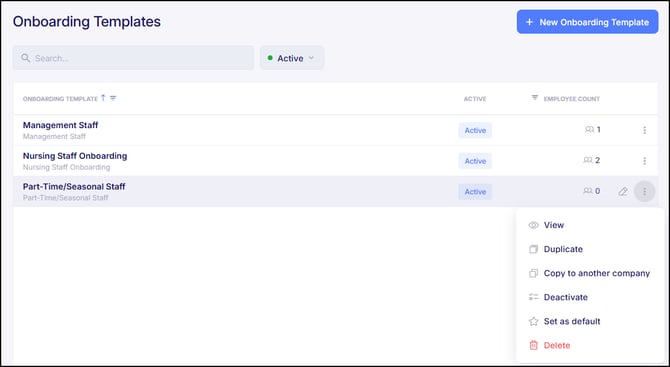
Additional options within the three dot menu include:
- View - Allows you to simply view the Onboarding Template and its contents.
- Duplicate - This will initiate the process of creating a new Onboarding Template but configure the new template with the same configurations as the existing template being duplicated.
- Copy to another company - This allows for the Onboarding Template to be copied to another company within the organization.
- Deactivate - This deactivates the Onboarding Template. If an onboarding template has already been sent and is still in progress when it is deactivated, the employee will still be able to complete the onboarding process.
- Set as default - This set the template as the default template.
- Delete - This option is only available for Onboarding Templates that have yet to be sent. Otherwise they will need to be deactivated. Deactivated templates can be viewed by filtering the "Active" button next to the search bar to "Not Active".
In most cases, when editing an Onboarding Template, it involves the need to adjust the Paths and Documents that have been assigned to it. However, if it's simply a matter of tweaking the Tasks within a Path, those changes should be made directly within the Path itself. Any adjustments made to a Path will automatically update in any Onboarding Template it's assigned to. Therefore, when editing an Onboarding Template, changes related to a Path should generally be limited to removing or replacing the Path altogether. For more information on how to edit a Path, please refer to Empeon's article Editing & Maintaining Paths.
For adjustments to Documents assigned to the Onboarding Template, the updated versions must first be uploaded to the Document Library in order to be available for replacement.
For any questions or issues with trying to edit an Onboarding Template, please don't hesitate to reach out to Empeon's Customer Service for further guidance.